Installing Testkube Runner with Helm Charts
You can install a Testkube Runner or runners with the listener capability using the kubeshop/testkube-runner Helm Chart. The Standalone
Runner is installed as described at Installing the Standalone Runner.
Basic installation
Make sure you've read about Testkube Runners at Runners Overview before diving into the installation.
Creating Runner for Helm Charts
To create a Runner with both the runner and listener capability, you can run testkube create runner command, like:
testkube create runner my-name --label my-label=my-value
After selecting the environment (unless you pass --env env-id parameter),
it will display information with runner ID and secret key:
ID:             tkcagent_c5895d9cf5ac9497
Name:           my-name
Created:        08 Jun 26 16:20 -0400 (0s)
Disabled:       no
Secret Key:     tkckey_agent_egxyk3yar22586sncd4zeguqmjrn3uqn
Last Activity:  never
Last Version:
Last Namespace:
Environments:
    my-first-environment (tkcenv_f55409417bbb8618)
Labels:
   my-label = my-value
Policy:
   Required Matching Labels: name
Helm install
Use the following command to install the Helm Chart from OCI Registry:
helm upgrade --install \
  --create-namespace \
  --namespace my-runner \
  --set 'runner.id=<your:tkcrun_:runner_id>' \
  --set 'runner.orgId=<your:tkcorg_:organization_id>' \
  --set 'runner.envId=<your:tkcenv_:environment_id>' \
  --set 'runner.secret=<your:tkckey_agent_:key>' \
  --set 'cloud.url=agent.testkube.io:443' \
  my-runner oci://us-east1-docker.pkg.dev/testkube-cloud-372110/testkube/testkube-runner --version <version>
You can also use own values.yaml file, based on our defaults:
runner:
  id: "<your:tkcrun_:runner_id>"
  orgId: "<your:tkcorg_:organization_id>"
  envId: "<your:tkcenv_:environment_id>"
  secret: "<your:tkckey_agent_:key>"

cloud:
  url: "agent.testkube.io:443"
Updating runner labels and mode
If you want the runner Deployment itself to be the source of truth for labels and runner mode (instead of
managing them through testkube update runner), set the corresponding Helm values and run helm upgrade
so the runner pod restarts:
| Helm value | Purpose |
|---|---|
runner.register.global | Register the runner as a Global runner. |
runner.register.groupName | Register the runner as a Grouped runner (cannot be combined with runner.register.global). |
runner.register.labels | Map of labels to publish to the Control Plane. Each key is published with runner.register.labelPrefix (default runner.testkube.io/) prepended. |
Example:
helm upgrade --install \
  --namespace my-runner \
  --reuse-values \
  --set 'runner.register.groupName=eu-runners' \
  --set 'runner.register.labels.region=europe' \
  my-runner oci://us-east1-docker.pkg.dev/testkube-cloud-372110/testkube/testkube-runner --version <version>
Once the runner reconnects, the Runners list in the Dashboard will reflect the new values. From that point
on, any change made through testkube update runner for those fields will be overwritten on the runner's
next reconnect — pick a single source of truth per runner.
If runner.register.labels / runner.register.global / runner.register.groupName are not set,
the runner will not touch the corresponding stored values on reconnect, so existing CLI-managed runners
remain unchanged after a Helm upgrade. See
Updating runner labels and mode
for the complete behavior matrix.
Self-registering Runner Helm install
Sometimes it may be desirable to allow Runners to create themselves automatically on deployment (without using the CLI), for example when using an ephemeral testing environment that is programmatically created.
Each environment has a Runner Join Token assigned to it. This API key can be used for creating Runners automatically when the Runner itself first starts.
This enables you to install the Runner using only helm:
- Retrieve the helm instructions including the Runner join token for the target environment:
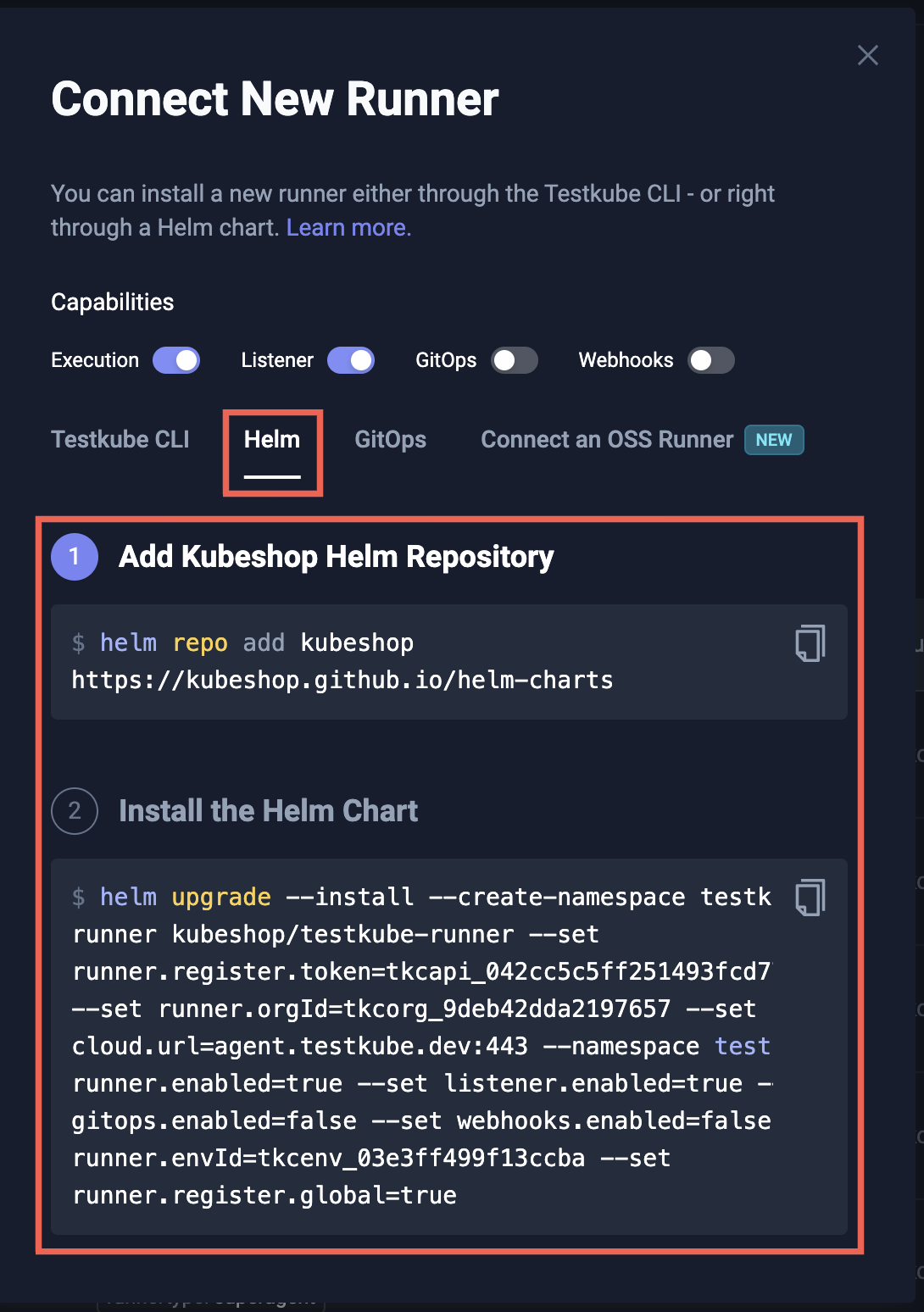
- Install the Helm Chart:
helm upgrade --install \--create-namespace \--namespace my-runner \--set 'runner.orgId=<your:tkcorg_:organization_id>' \--set 'runner.envId=<your:tkcenv_:environment_id>' \--set 'runner.register.token=<your:tkcapi_:key>' \--set 'cloud.url=agent.testkube.io:443' \--set 'runner.enabled=true' \--set 'listener.enabled=true' \my-runner oci://us-east1-docker.pkg.dev/testkube-cloud-372110/testkube/testkube-runner --version <version>
Or with a values file:
runner:
  enabled: true
  orgId: "<your:tkcorg_:organization_id>"
  envId: "<your:tkcenv_:environment_id>"
  register:
    token: "<your:tkcapi_:key>"

listener:
  enabled: true

cloud:
  url: "agent.testkube.io:443"
Limitations of self-registering Runners
- Self-registering Runners must be able to create Kubernetes
Secretsin their namespace. These secrets are used to store the runner's ID and connection key which are generated during registration. If the Runner cannot create aSecretit will self-register every time it starts up. - Runners will not deregister themselves during
helm uninstall. Instead, self-registered Runners must be manually removed using the UI or CLI.
Runner Cookbook
There are common things that you may want to set up in your values.
Install runner in one namespace and run executions in another
To separate concerns, you may separate your runners from the execution:
execution:
  default:
    namespace: my-execution-namespace
Disable access to Kubernetes from executions
By default, your executions will use a ServiceAccount that has access to pods, jobs, and events. It's required for Parallel Steps and Services.
To disable it, you can disable auto-creation of ServiceAccount for executions:
execution:
  default:
    serviceAccount:
      autoCreate: false
      # name: my-custom-service-account # you can also use your own service account
Read more about ServiceAccounts below
Support additional namespaces
You can also allow the runner to schedule in multiple namespaces.
In your values.yaml file:
execution:
  additionalNamespaces:
    "custom-namespace":
      serviceAccount:
        autoCreate: false # set 'true' to allow parallel steps & services
        # name: my-custom-service-account # you can also use your own service account
Then, in your workflow configure:
spec:
  job:
    namespace: custom-namespace
Setting Global Template
For each runner, you may set a custom Global Template. It will be used as the foundation for every execution in this runner.
It's useful, for example, to set up OpenShift's security context that will be separate for each runner:
globalTemplate:
  enabled: true
  inline: true
  spec:
    pod:
      securityContext:
      enabled: true
      fsGroup: 1000650001
      runAsUser: 1000650001
    container:
      securityContext:
        runAsUser: 1000650001
        runAsNonRoot: true
Register as a floating runner
Self-registering runners are by default assigned a fixed license, if you wish to assign them a floating license instead you can do as follows:
runner:
  register:
    floating: true
Read more about floating licenses at Licensing for runners
Service Accounts
The runner Helm Chart creates two kinds of ServiceAccounts:
exec-sa-testkube- ServiceAccount for the Execution Pods; it allows the Execution to schedule and monitor Pods forservicesandparallelsyntaxes.runner-sa-testkube- ServiceAccount for Runner Pods; it allows the runner to (1) create pods for executions, and (2) read configmaps/secrets in own namespace.
The runner-sa-testkube ServiceAccount needs to be in the runner's namespace, as it's used by the runner's Pod.
The exec-sa-testkube ServiceAccounts are deployed to the namespaces where the executions will run as they need to use them in the above situations.
The -testkube suffix in the ServiceAccount names above and below might differ based on the underlying Helm Chart release name.
See the Chainsaw Example to see how a custom ServiceAccount can be used in your Workflow.
Example: Using the same namespace for runner and Executions
By default, we deploy both runner and Executions to the same namespace the Helm Chart is released to.
Then, runner-sa-testkube and exec-sa-testkube are deployed in that namespace. runner-sa-testkube has wider permissions and is used by runner,
exec-sa-testkube has smaller permissions and is used by Executions.
Example: Avoid ServiceAccount for the executions
If you are not using services and parallel syntax, you may want to set Helm Chart values to:
execution:
  default:
    serviceAccount:
      autoCreate: false
This way, the executions will use default or specified ServiceAccount, that likely won't have access to i.e. reading pods (in opposite to auto-created one).
This blocks the ability of using services and parallel though, unless you will provide service account name in the spec with
pod:
  serviceAccountName: "my-name-or-i-e-agent-sa-testkube"
Read more about Workflow pod configuration at Test Workflows - Job and Pod Configuration.
Example: Run executions in a different namespace than the runner
For better security, you may isolate the executions to be running in a different namespace than the runner. This way, you ensure that they cannot read runner's data (like Runner token), or anything else. Also, this could help to deploy multiple runners in the same namespace while having the executions for each of them in a different one.
To achieve that, you can use such Helm Chart values:
execution:
  default:
    namespace: "my-namespace-where-only-executions-should-run"
In such case:
runner-sa-testkubeServiceAccount will still be deployed in the Helm Chart release namespace,exec-sa-testkubeServiceAccount will be deployed inmy-namespace-where-only-executions-should-runnamespace
Example: Full Security
You can as well combine both cases - avoid parallel/services and deploy executions to a separate namespace. This way you have full isolation.
execution:
  default:
    namespace: "my-namespace-where-only-executions-should-run"
    serviceAccount:
      autoCreate: false
Example: Multiple Namespaces
To allow runner to support
job:
  namespace: "non-default-namespace"
in the Test Workflow's spec (see Test Workflows - Job and Pod Configuration), you can provide additional namespaces alongside the default one:
execution:
  additionalNamespaces:
    non-default-namespace:
      serviceAccount:
        autoCreate: true
Listener cookbook
Listening in additional namespaces
Runners with the listener capability only listen for events in the namespace where they are deployed by default. You can configure
additional namespaces to listen to by setting the additionalNamespaces value in the Helm Chart:
listener:
  enabled: true
  additionalNamespaces:
    - nm-2
    - nm-3
Listening in all namespaces
If you don't want to maintain a list of namespaces, you can enable cluster-wide listening by setting watchAllNamespaces to true:
listener:
  enabled: true
  watchAllNamespaces: true
This makes the runner with the listener capability watch every namespace in the cluster. Use this when you need full coverage or when namespaces are created dynamically.