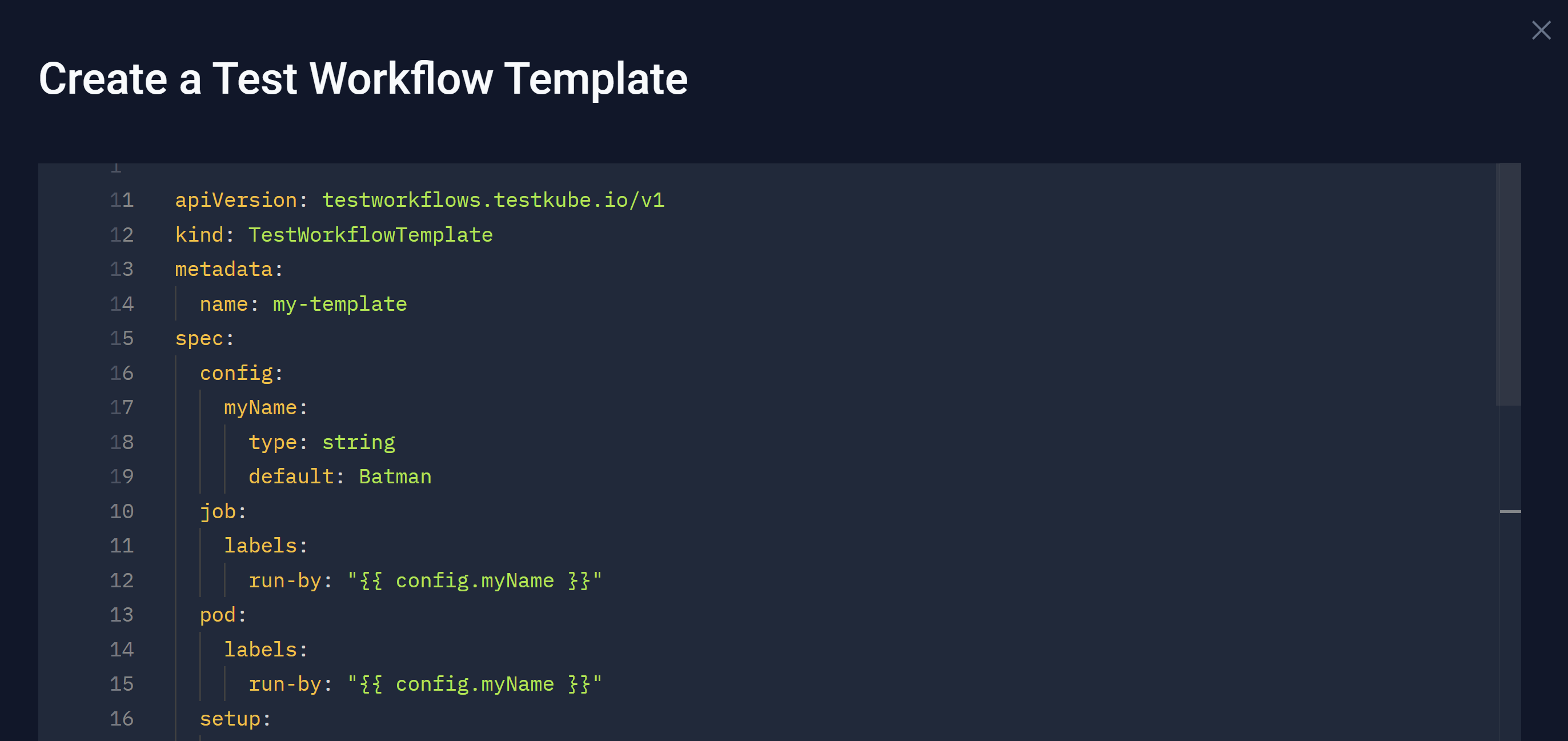
Workflow Templates
Workflow Templates are reusable configuration blocks for your Workflows that you can use to ensure your Workflows follow specific patterns or best practices, such as when using tools like Playwright and Selenium. With a standard set of instructions for testing tools, you do not have to start your test instructions with a blank page of sorts. Instead, you can start with a Workflow Template – tailoring this baseline to align with your current configuration requirements. These templates are powerful mechanisms for defining, sharing, and reusing Workflow configurations. Leveraging these templates allows you to save time by using and tweaking existing configurations as opposed to building each new set of instructions from scratch. For additional information, read Test Workflow Templates.
You can select Workflow Templates to view the list available in your Environment.
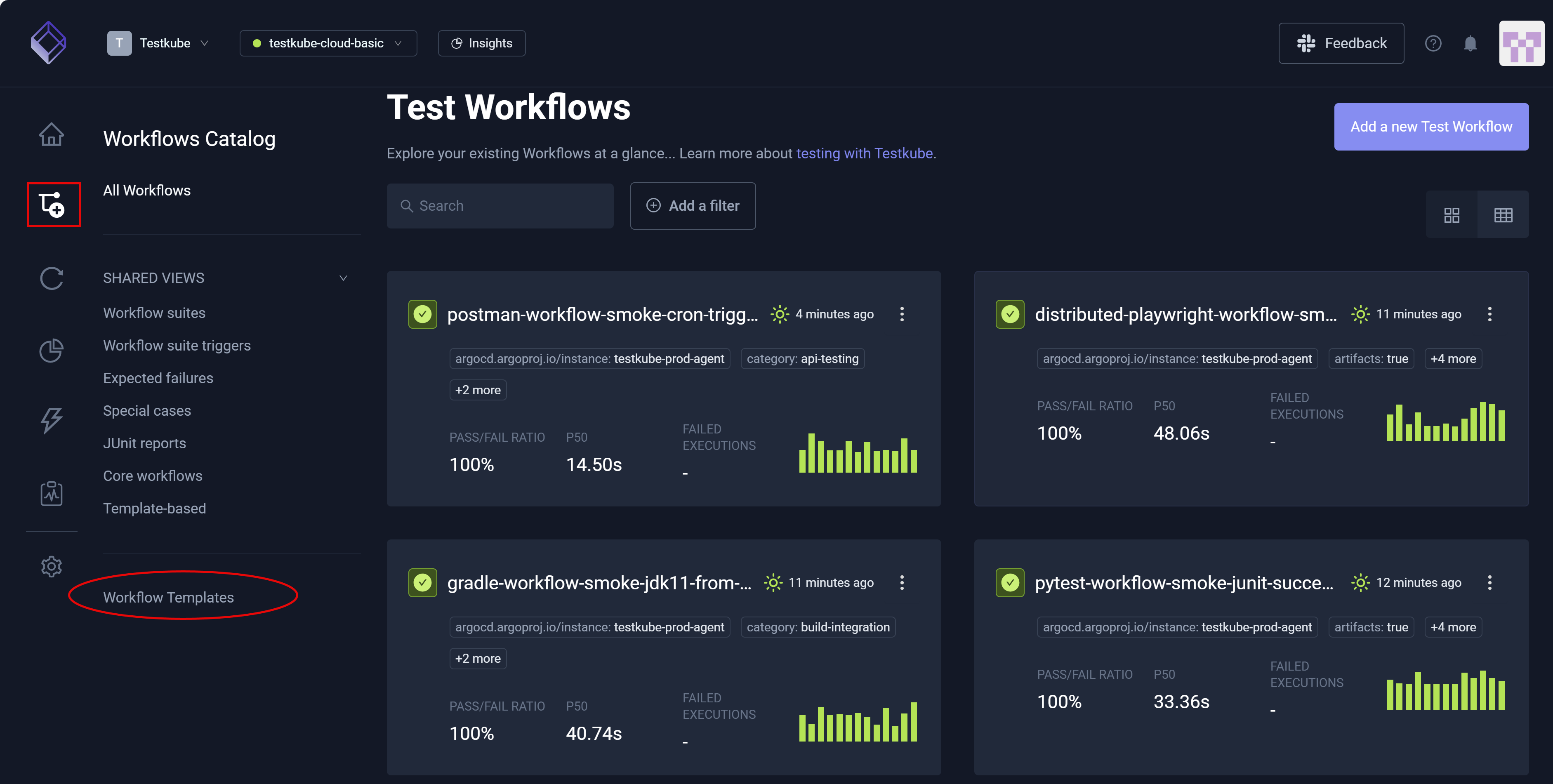
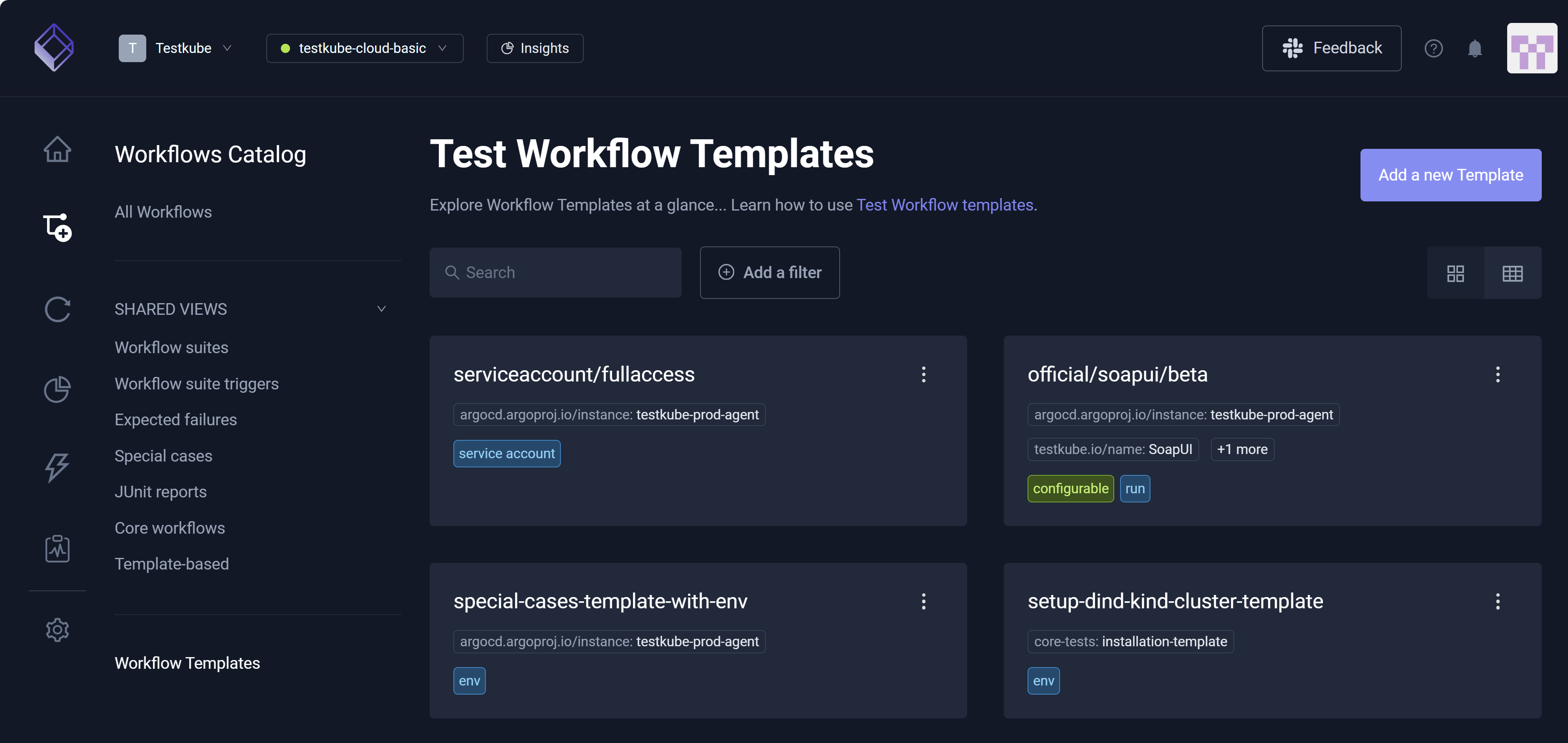
The Workflow Wizard uses templates named official/... to help you create Workflows for the corresponding testing tools.
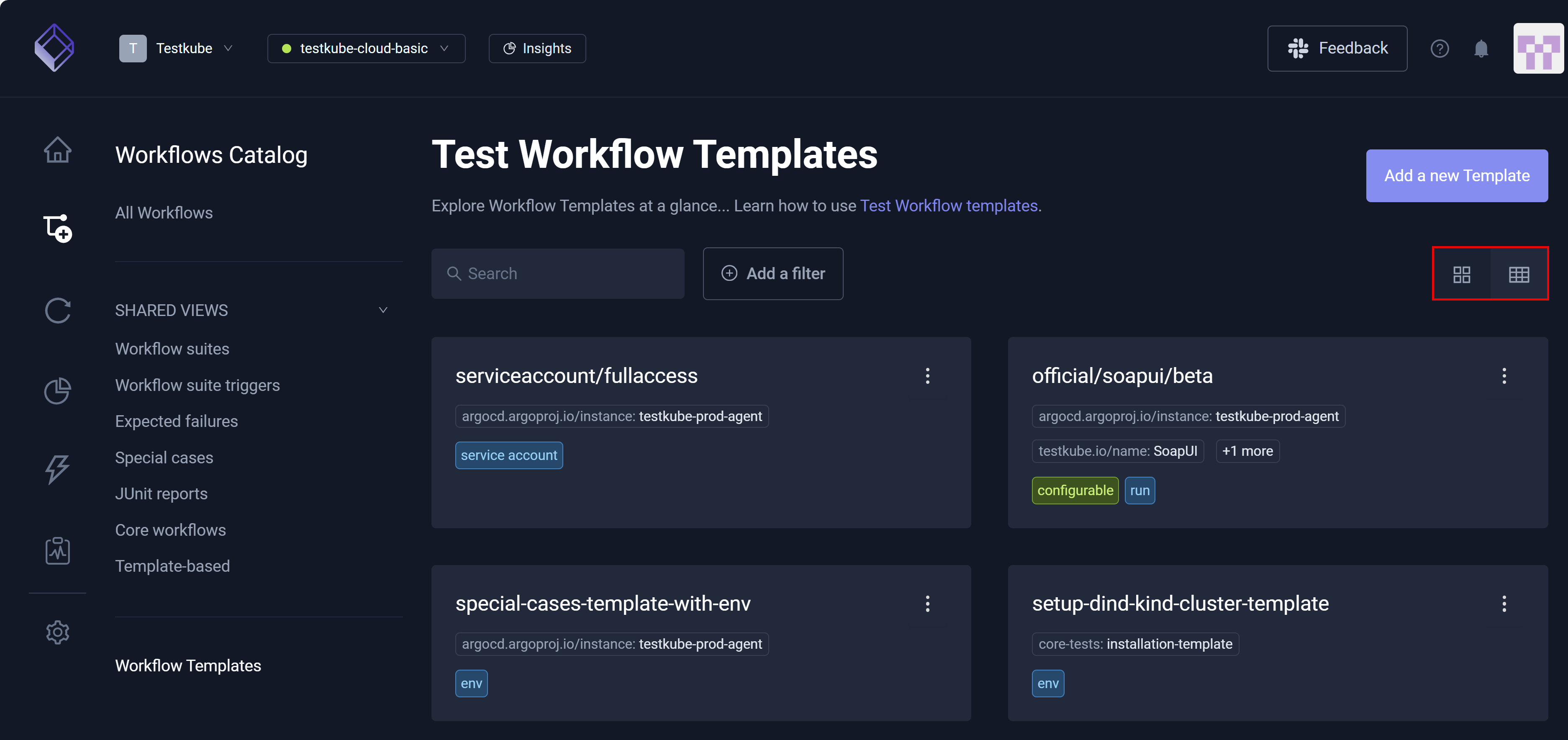
Similar to Workflows, you can toggle between Grid view and Table view. You can also Add a New Template.
Workflow Template Settings
When you select a Workflow Template, Settings opens with emphasis on General.
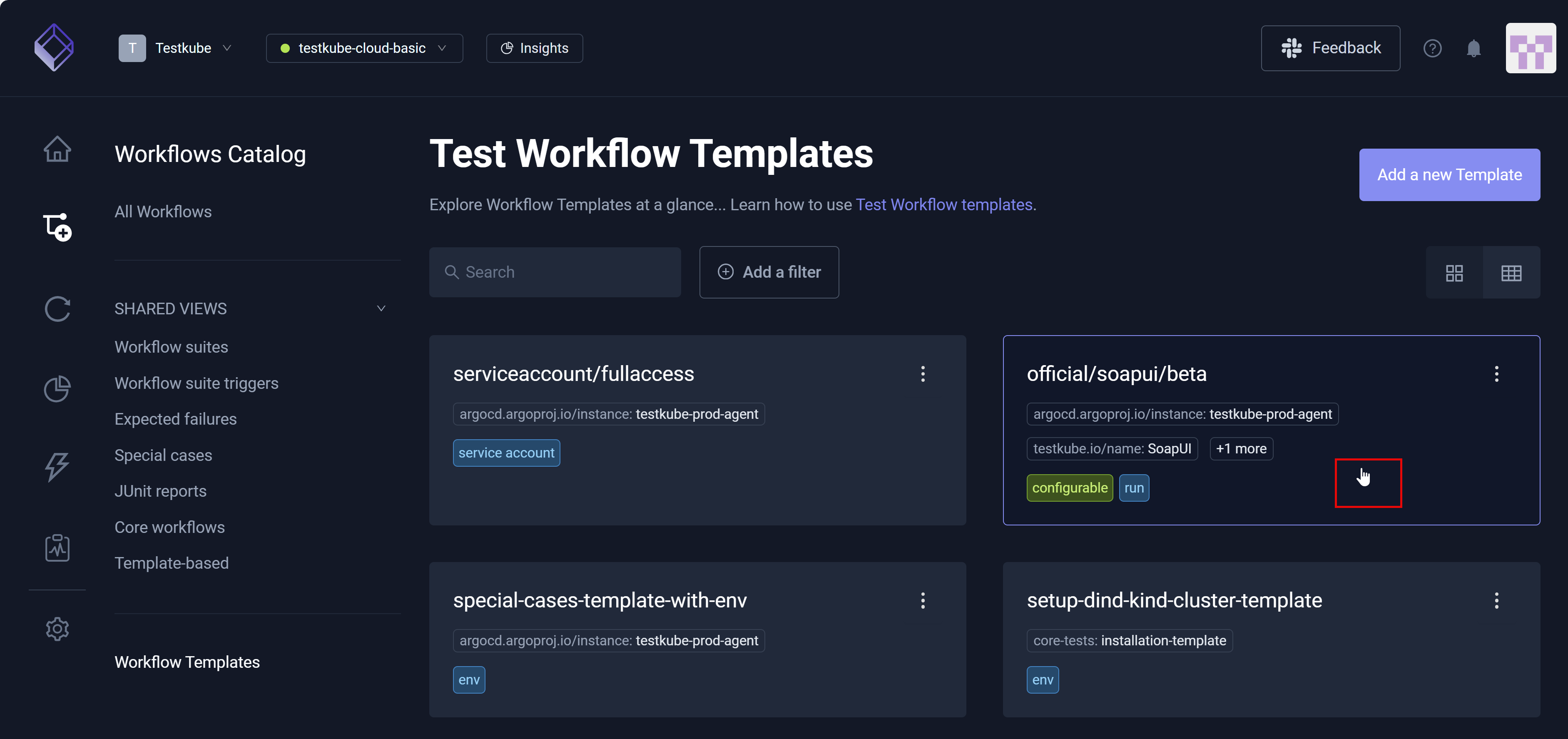
General Settings
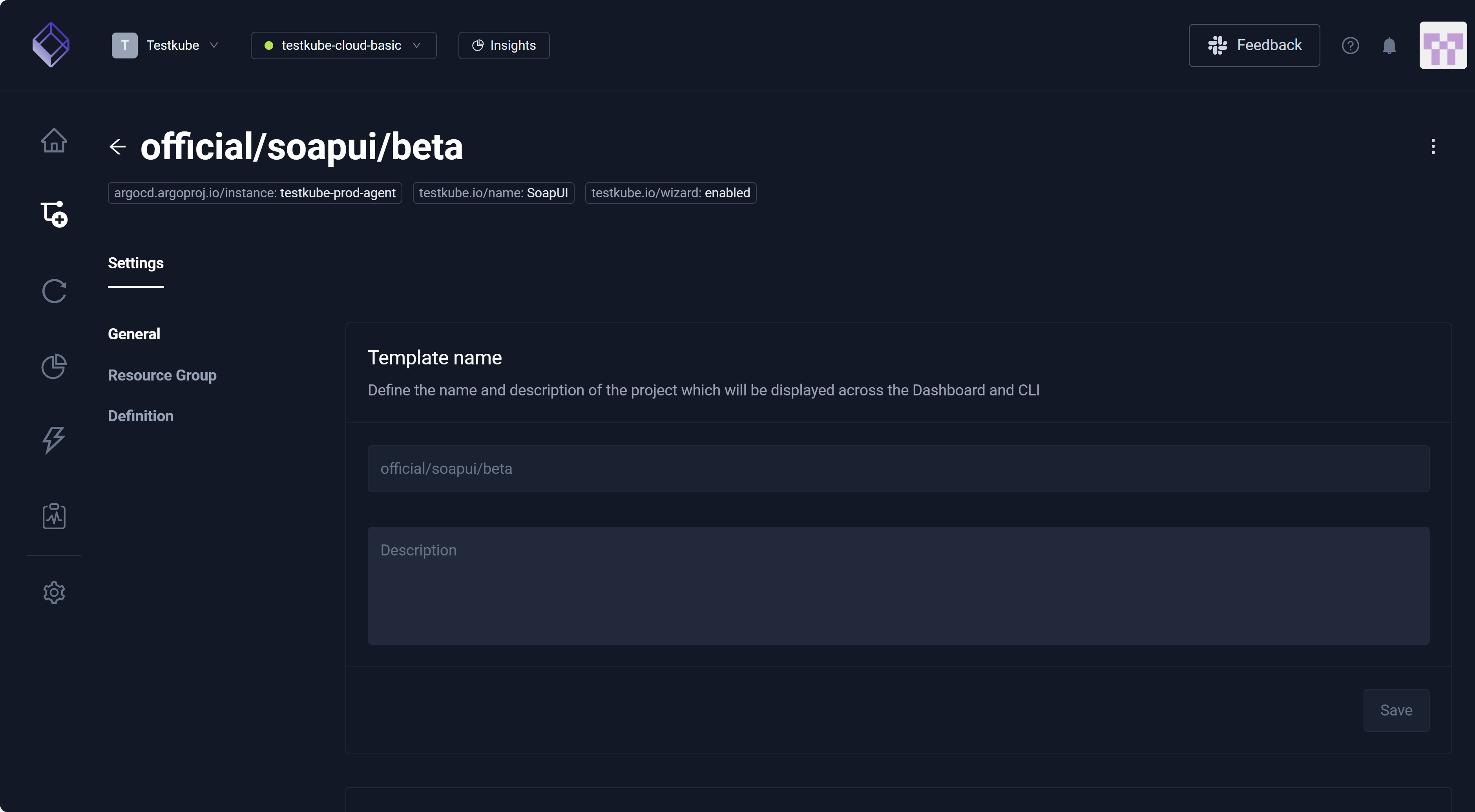
General allows you to enter a Description. The three vertical dots – More Options (top right) – allow you to Edit or Delete the Workflow Template. Deleting the Workflow Template is an irreversible action. General also includes a Usage example which displays YAML, depicting how to include this template in your Test Workflow.
Kubernetes constraints prevent you from changing the Template Name. Instead, you must create a copy of the Workflow Template with the new name and delete the old one.
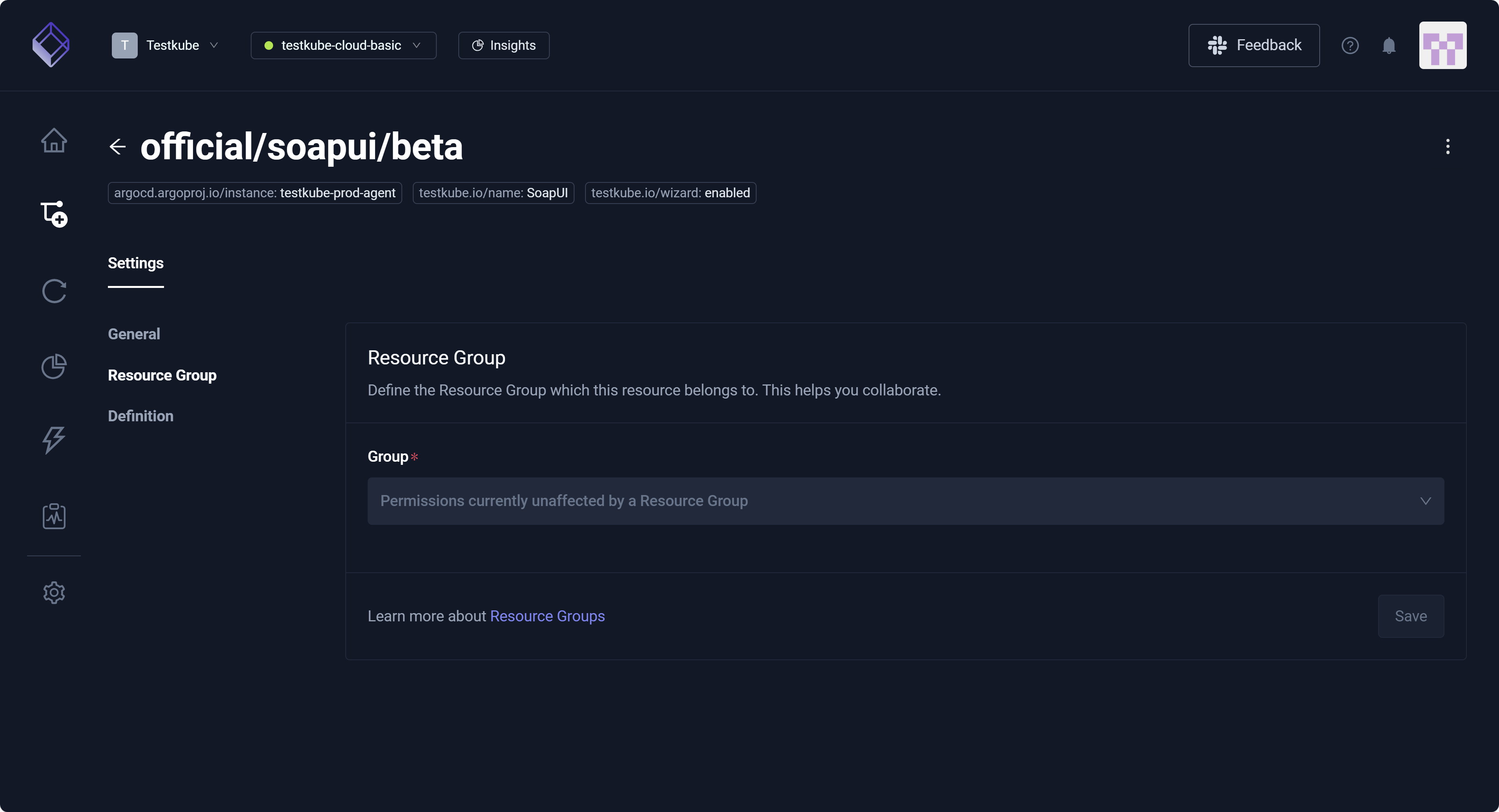
Resource Group
This setting allows you to assign this Workflow Template to a Resource Group, facilitating your ability to collaborate. For additional information, read Managing Resources in a Resource Group.
Definition
This setting allows you to edit the Workflow Template by updating its configuration via a dedicated YAML editor.
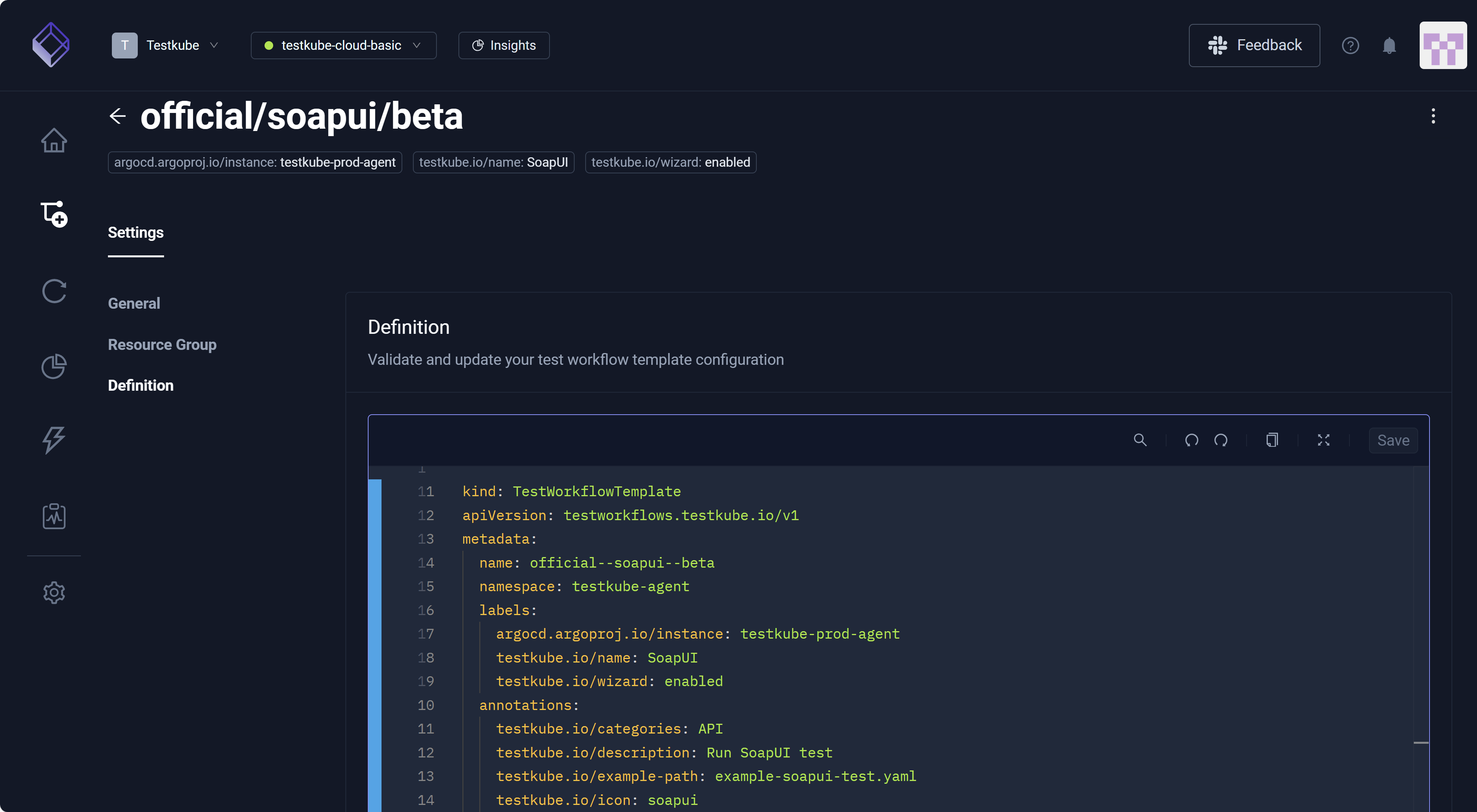
Changing templates impacts all Workflows that use them. Please ensure updates do not disrupt existing usage.
Add a New Template
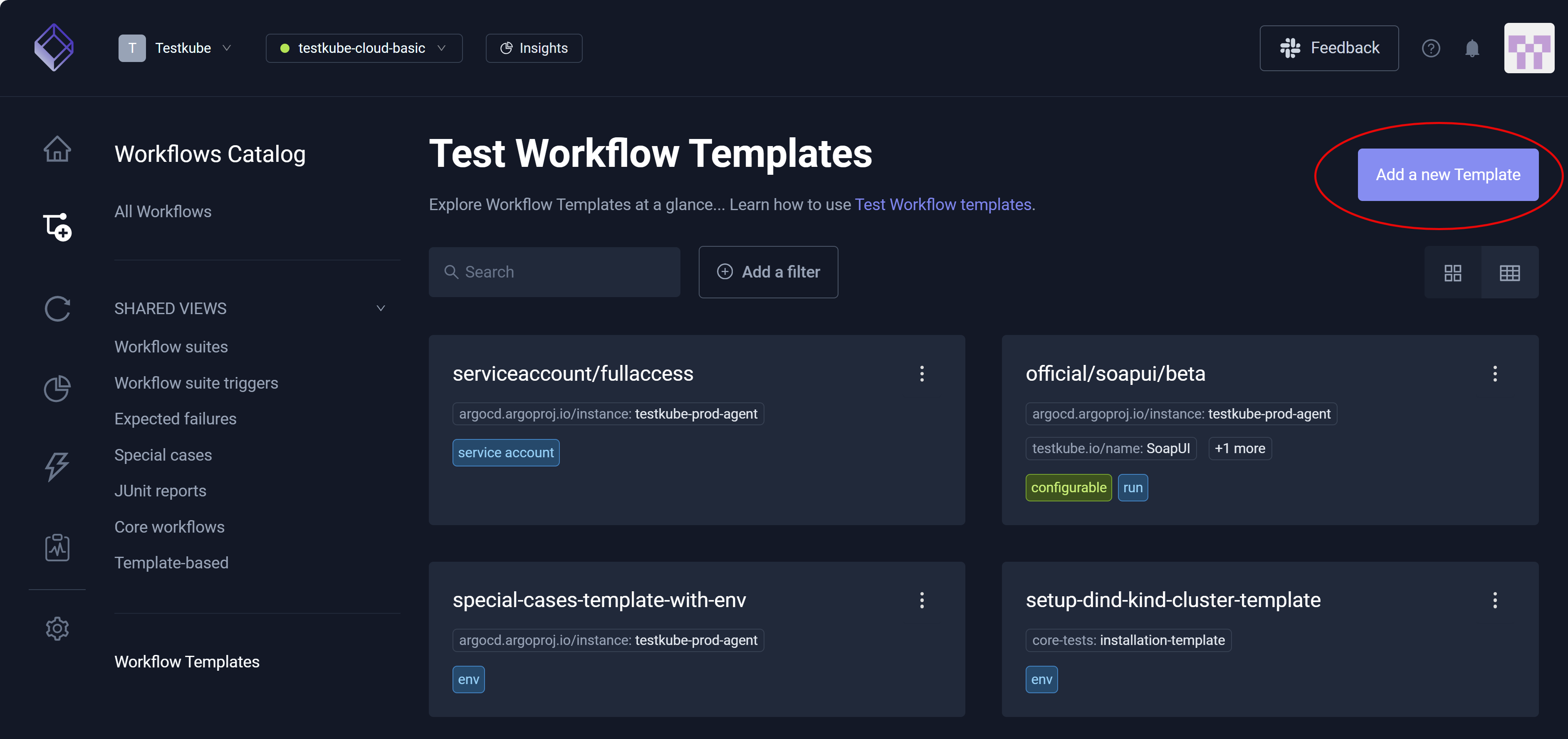
Select Add a new template to create Workflow Templates specific to:
- Git Content – Create a template to use a Git Source across multiple Test Workflows.
- Static Content – Create a template to use a static file across multiple Test Workflows.
- Testing Tool – Create a template with a container/runnable testing tool on which to base your Test Workflows.
- Import from YAML – Create a template from scratch or copy/paste YAML examples.
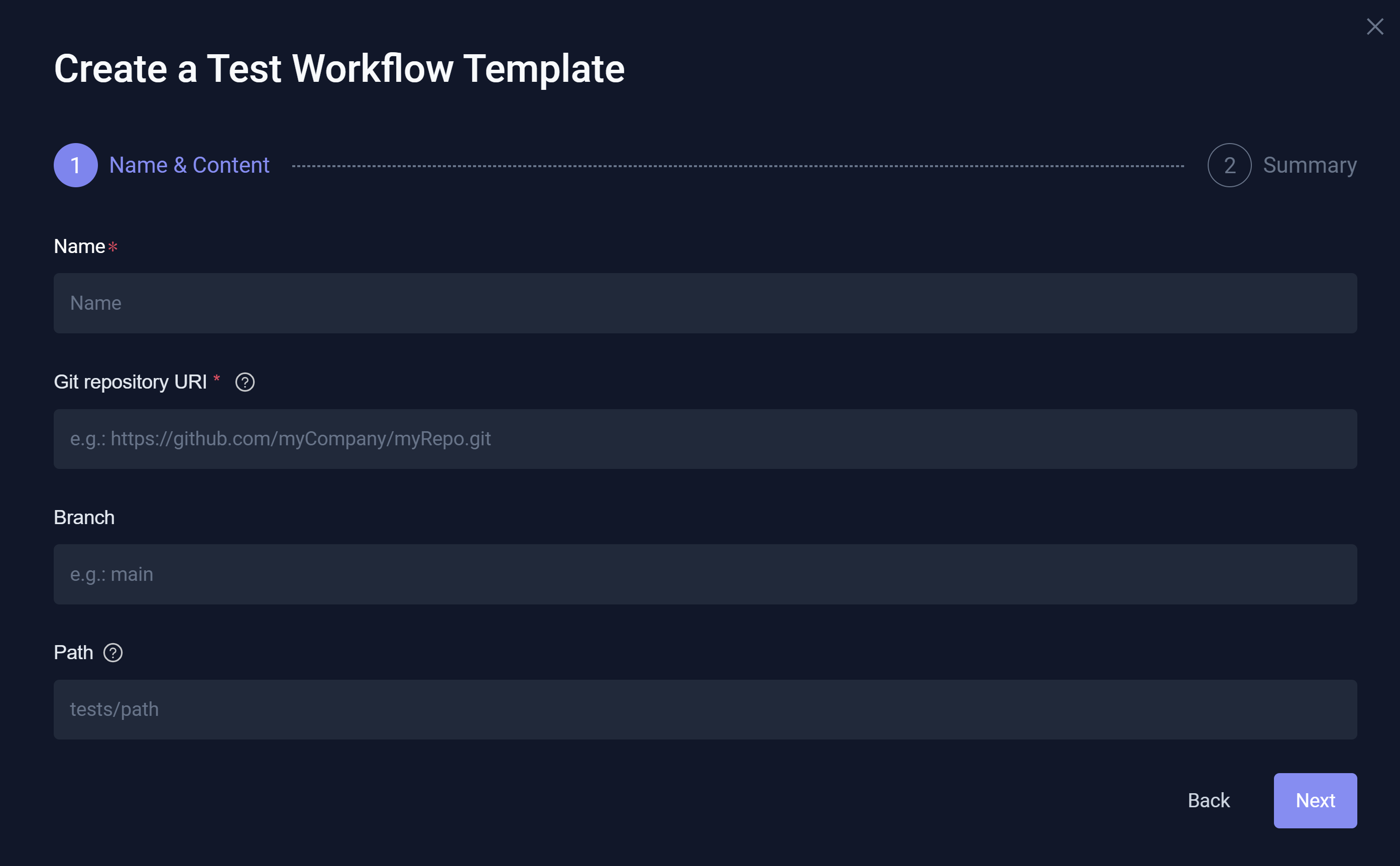
Git Content
This option creates a Workflow Template that ensures your Workflows use the same Git Source as its content. For example, all Workflows might use the same Git repository/branch or even the same access method such as SSH or HTTPS.
Static Content
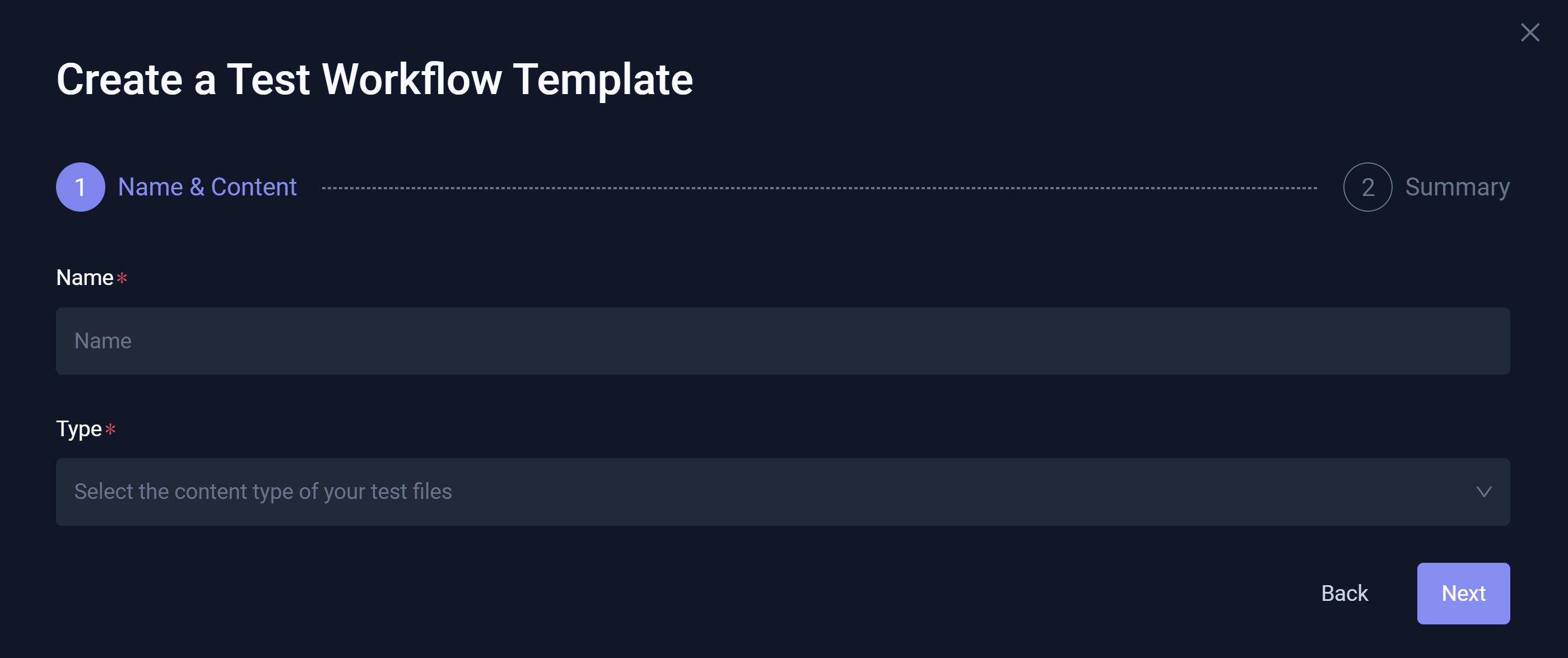
This option creates a Workflow Template that ensures your Workflows use the same static content for the same scenarios. For example, Deployment Workflows might use the same template such that the production setup text is identical. Similarly, Onboarding Workflows might reference the same static instructions for new users.
Testing Tool
This option creates a Workflow Template that ensures your Workflows use the same testing tool or script the same way.
Import from YAML
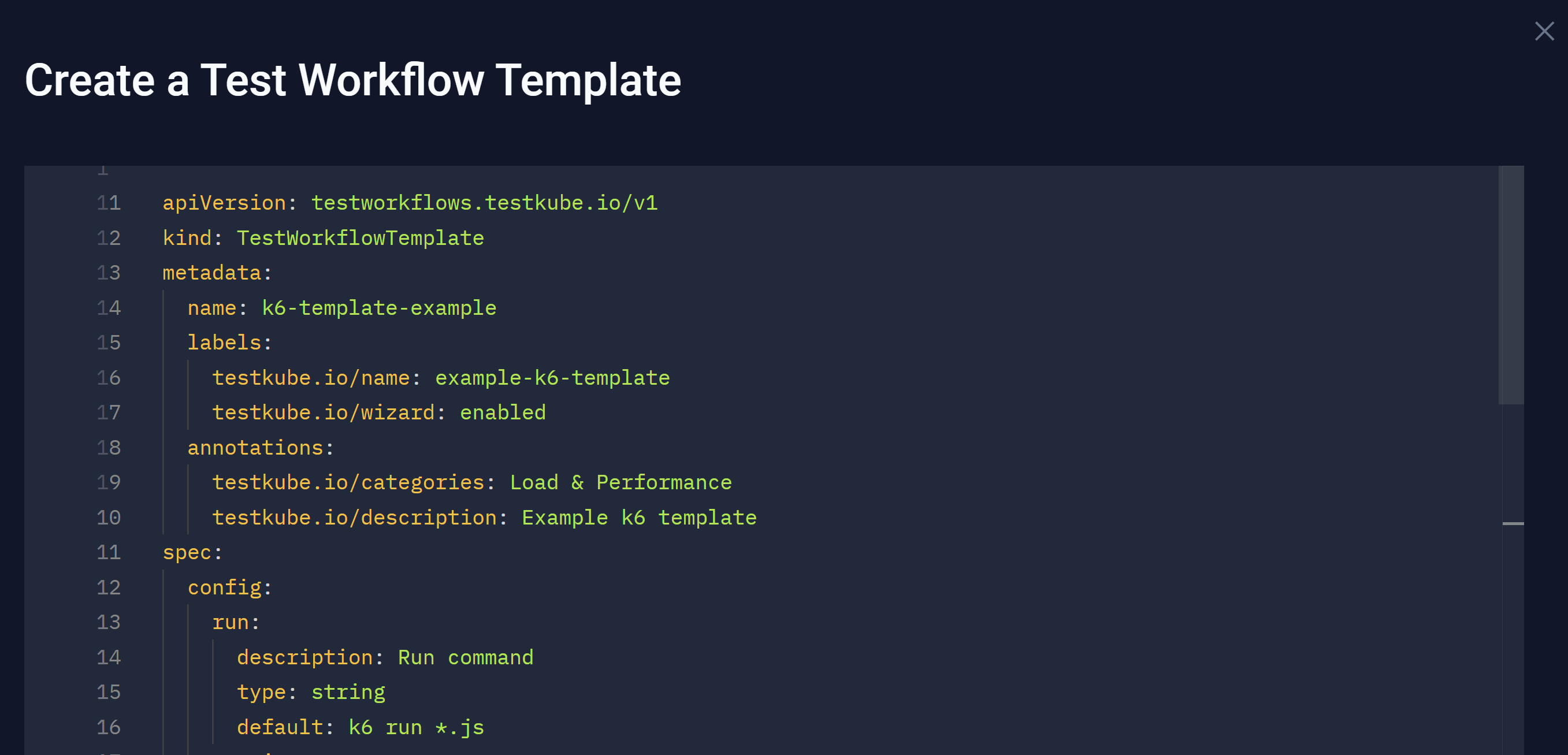
You can paste YAML directly, or you can create a new template using YAML.