Workflow Wizard
The Workflow Wizard guides you through creating and managing Testkube Workflows – streamlining test setup by automatically discovering tests, generating configurations, and producing YAML files. The Wizard improves onboarding speed, reduces configuration errors, and offers several options that allow you to create Workflows.
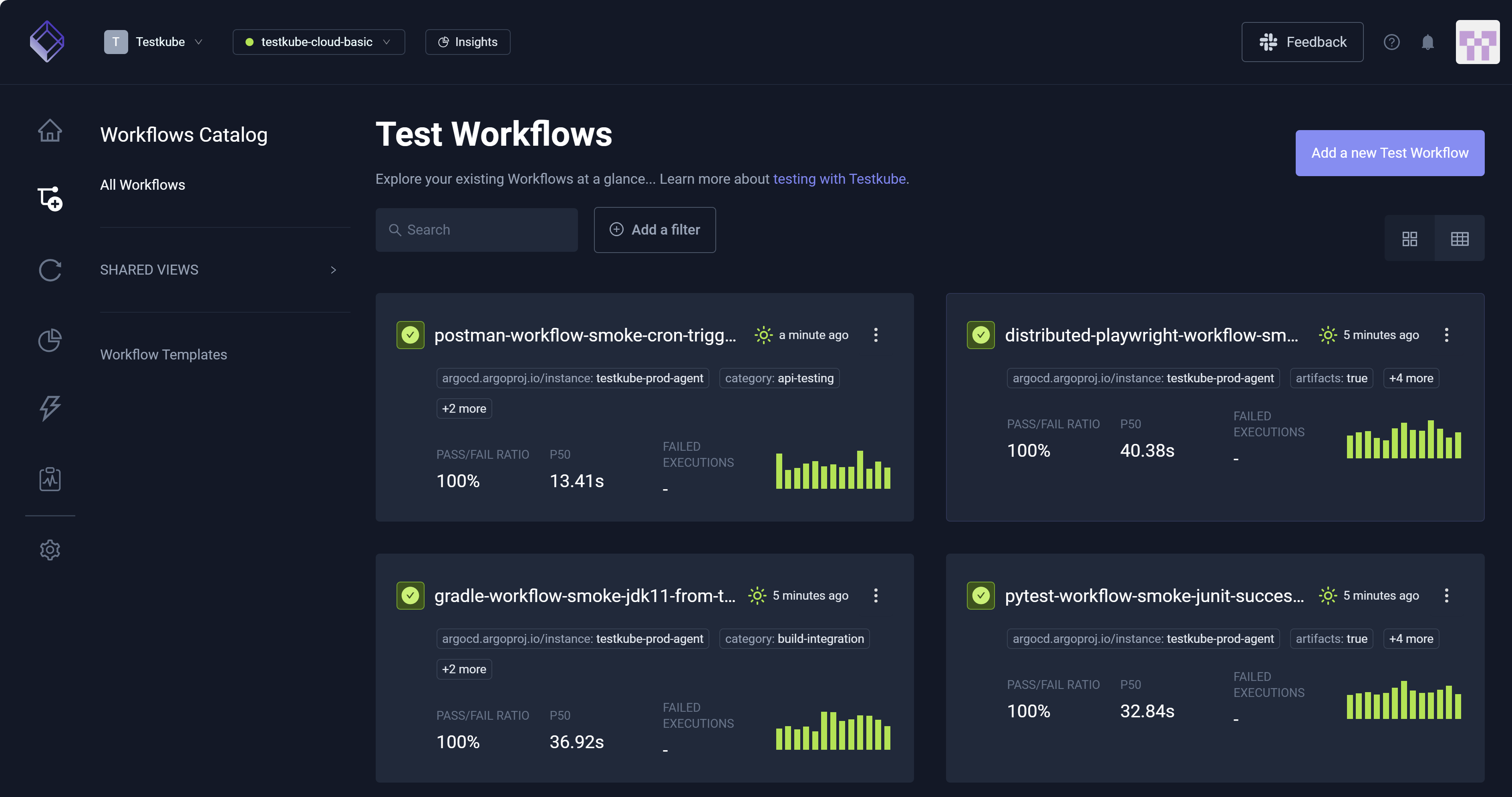
You initiate the Wizard by accessing Test Workflows and selecting Add a new Test Workflow.
Upon selection of Add a new Test Workflow, the Create a Test Workflow modal opens. You can start a new Workflow via Create with Wizard, Start from an example, Combine existing Workflows, and Import from YAML.
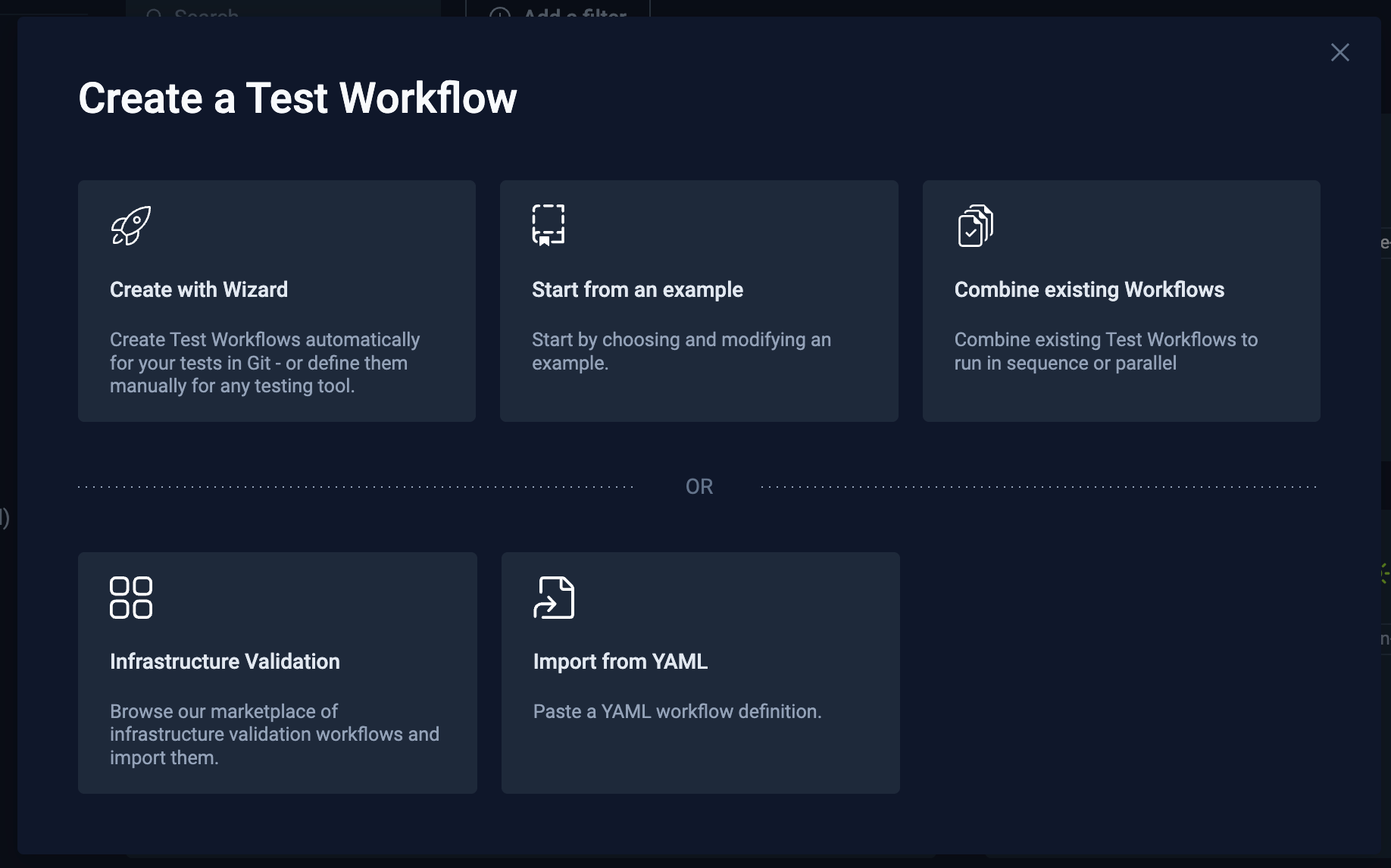
Create with Wizard
Create with Wizard includes five steps:
- Name & Source – Allows you to identify and distinguish your test by providing Name, Labels, and Source.
- Type – Allows you to select a project and indicate the testing tool version number.
- Run – Enables you to specify the configuration for how to run the test.
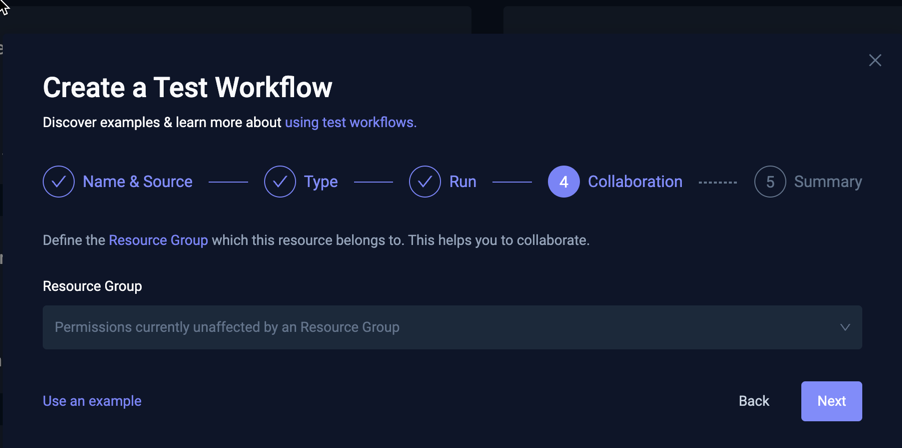
- Collaboration – Allows you to establish the settings for the generated Workflow.
- Summary – Displays the underlying Workflow YAML for your test.
Step 1 – Name & Source
Complete the fields in Name & Source.
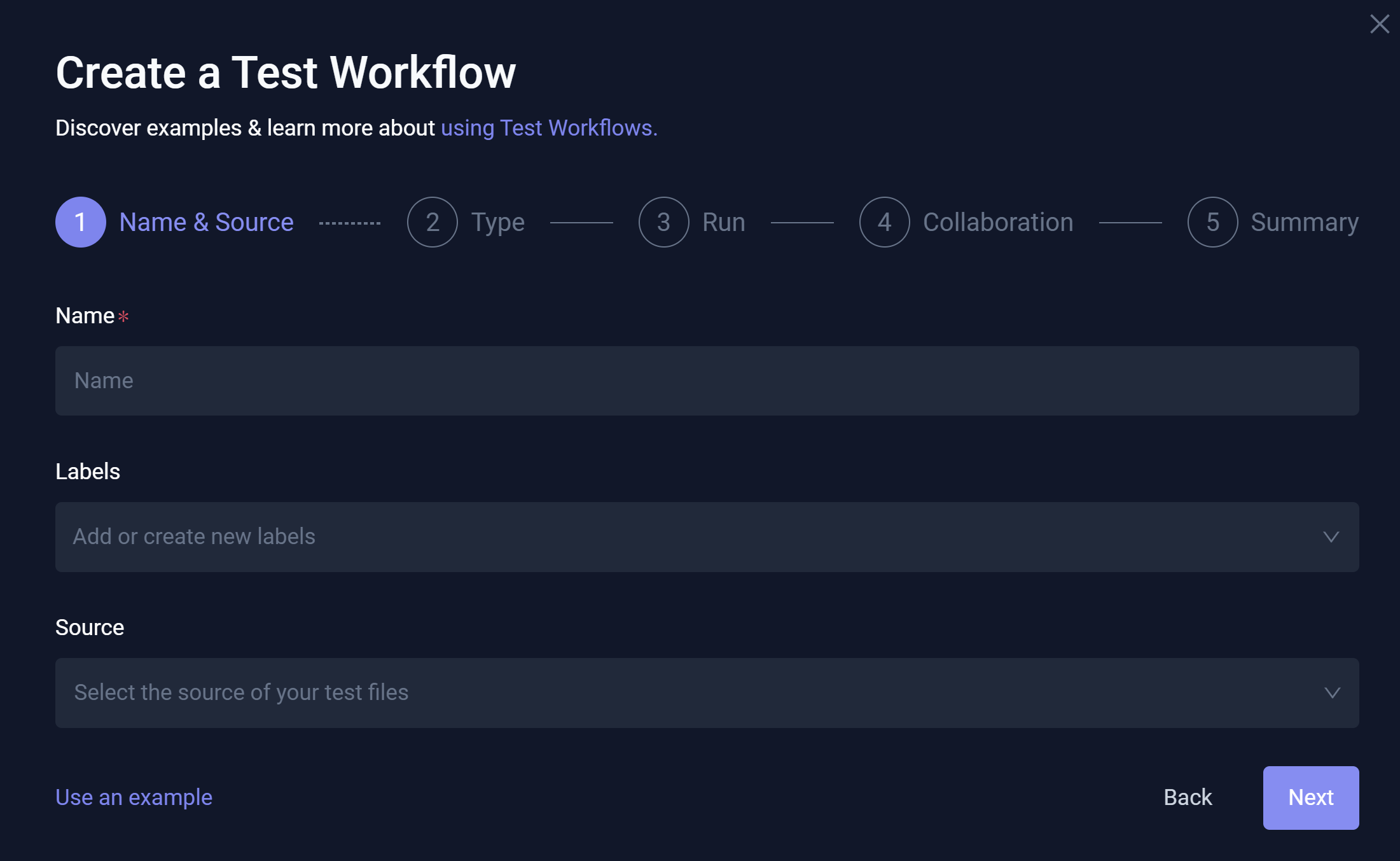
You must enter a Name. Labels and Source are optional. In the drop-down list box, Source contains:
- Git – Prompts for Git repository details.
- File – Allows you to upload a file containing the test you want to run.
- String – Allows you to specify the test directly in the dialog.
For additional information about how to work with Workflow content, read Test Workflows – Content
Git Source
When you select Git as the Source, your test prompts as follows:
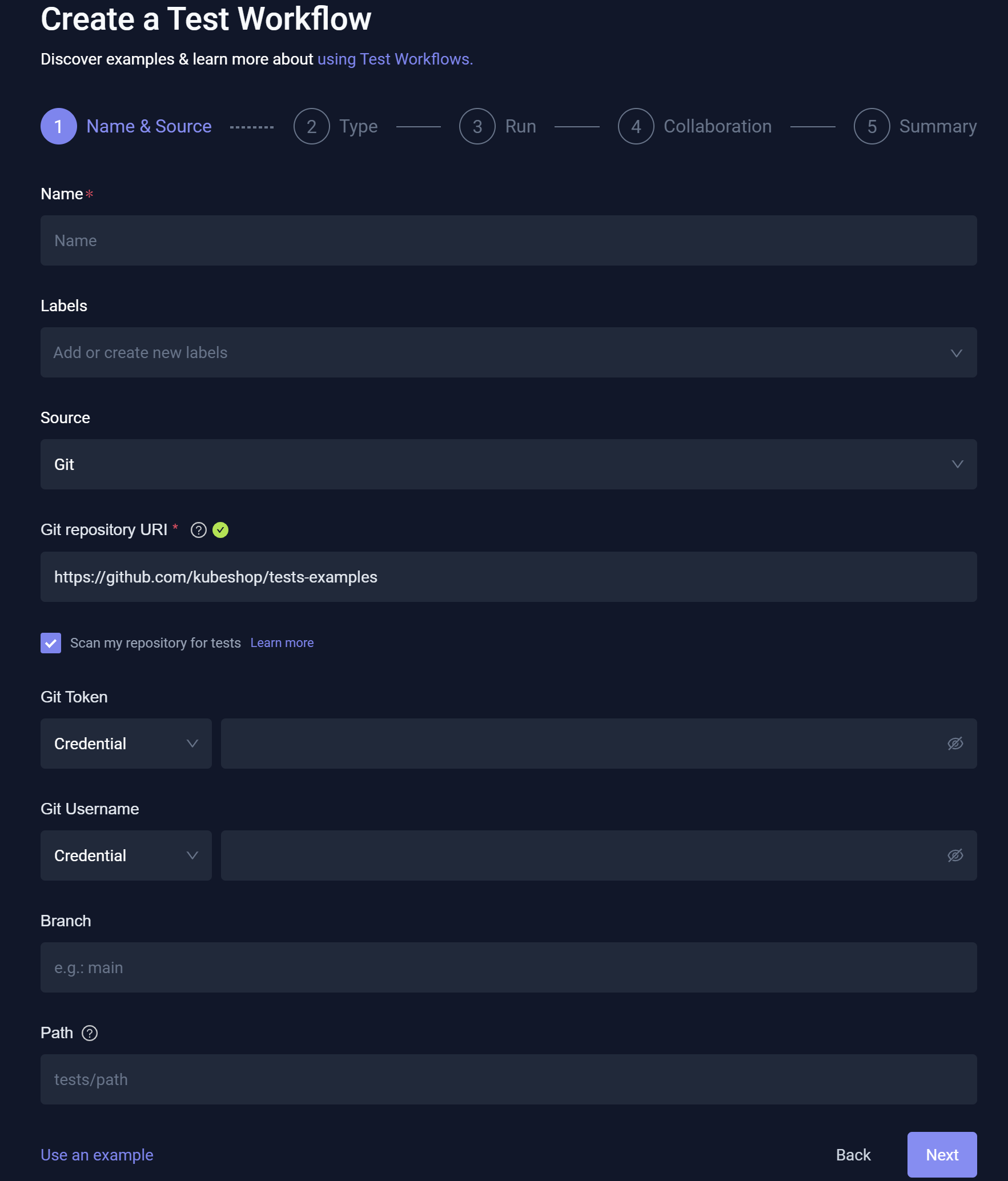
- Git Repository URI – Allows you to enter the URI. Testkube supports checking out repositories via HTTPS or SSH.
- Scan my repository for tests – Enables Automatic Test Discovery via this default checkbox selection.
- Git Token / Git Username – Allows you to choose Secret Reference, Secret, Plain-Text, Credential, or Credential Reference.
- Secret Reference – Allows you to specify both the Kubernetes Secret Name and Key to use.
- Secret – Testkube automatically creates a Kubernetes Secret for the specified value.
- Plain-text – Allows you to specify the value in plain-text (not recommended).
- Credential – Testkube automatically creates a credential for the specified value.
- Credential Reference – Allows you to enter the credential reference to an existing credential.
- Branch – Allows you to specify the branch name.
- Path – Allows you to specify a path (relative to the repository root) that contains your tests.
Automatic Test Discovery
Default selected checkbox – Scan my repository for test (with Git Source selection) – triggers Testkube's automatic scan for supported tests in the specific repository/branch/folder.
Testkube attempts to identify the following test types:
- Cypress Projects
- Gradle Projects
- JMeter Projects
- K6 scripts
- Maven Projects
- Playwright Projects
- Postman Collections
Testkube not finding your tests? Common testing tool missing from this list? Let us know on Slack. We can improve our algorithms!
The panel depicted below displays as Testkube scans your repository. Selecting Skip this aborts the ongoing Test Discovery process and launches you to the next step in the Wizard, Type.
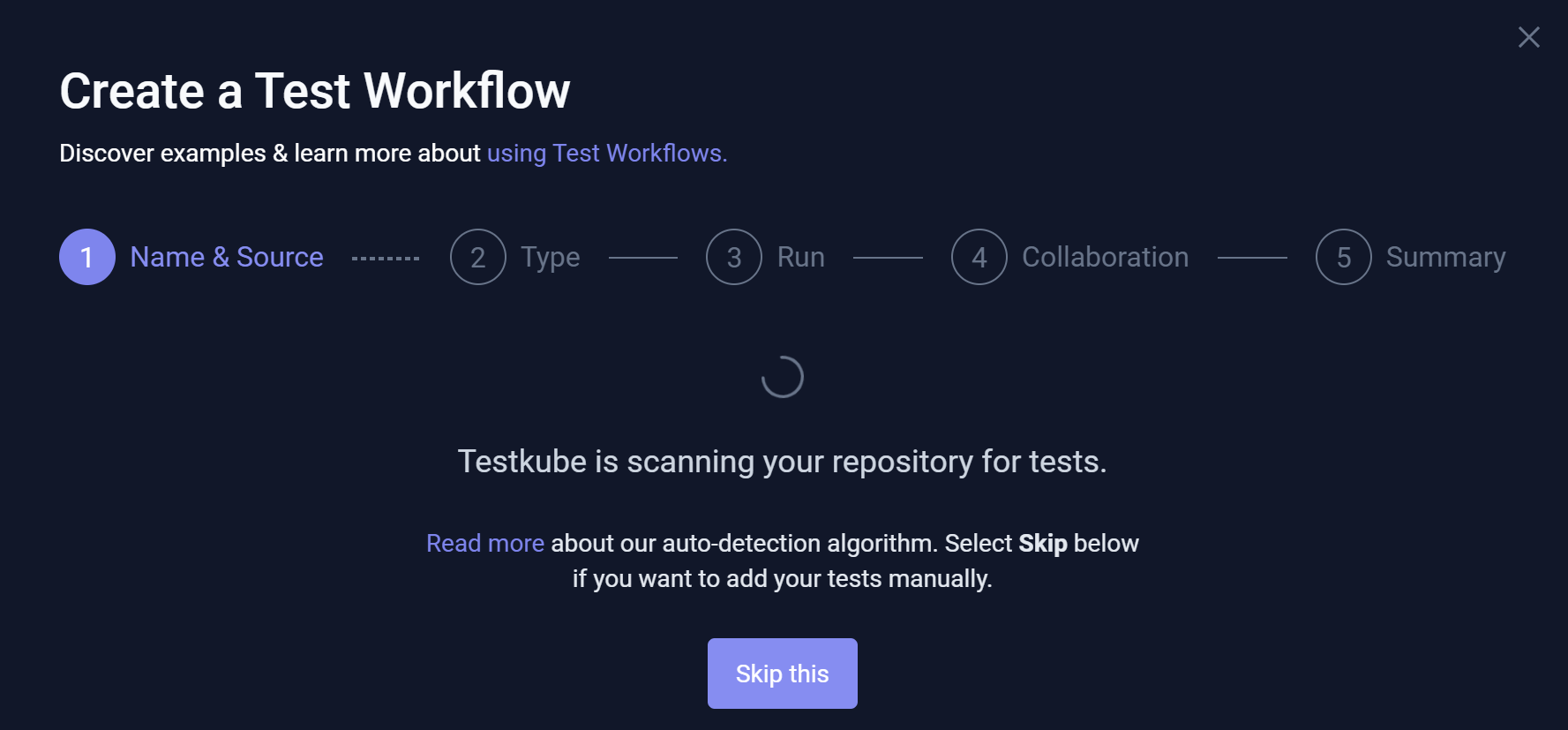
Scan completion also moves you forward to Type.
Testkube caches the Test Discovery result for your repository while you are within the Wizard. If you want to rescan the repository (for example if you have updated its content), you must close the Wizard and restart the process.
File Source
When you select File as the Source, your test prompts as follows:
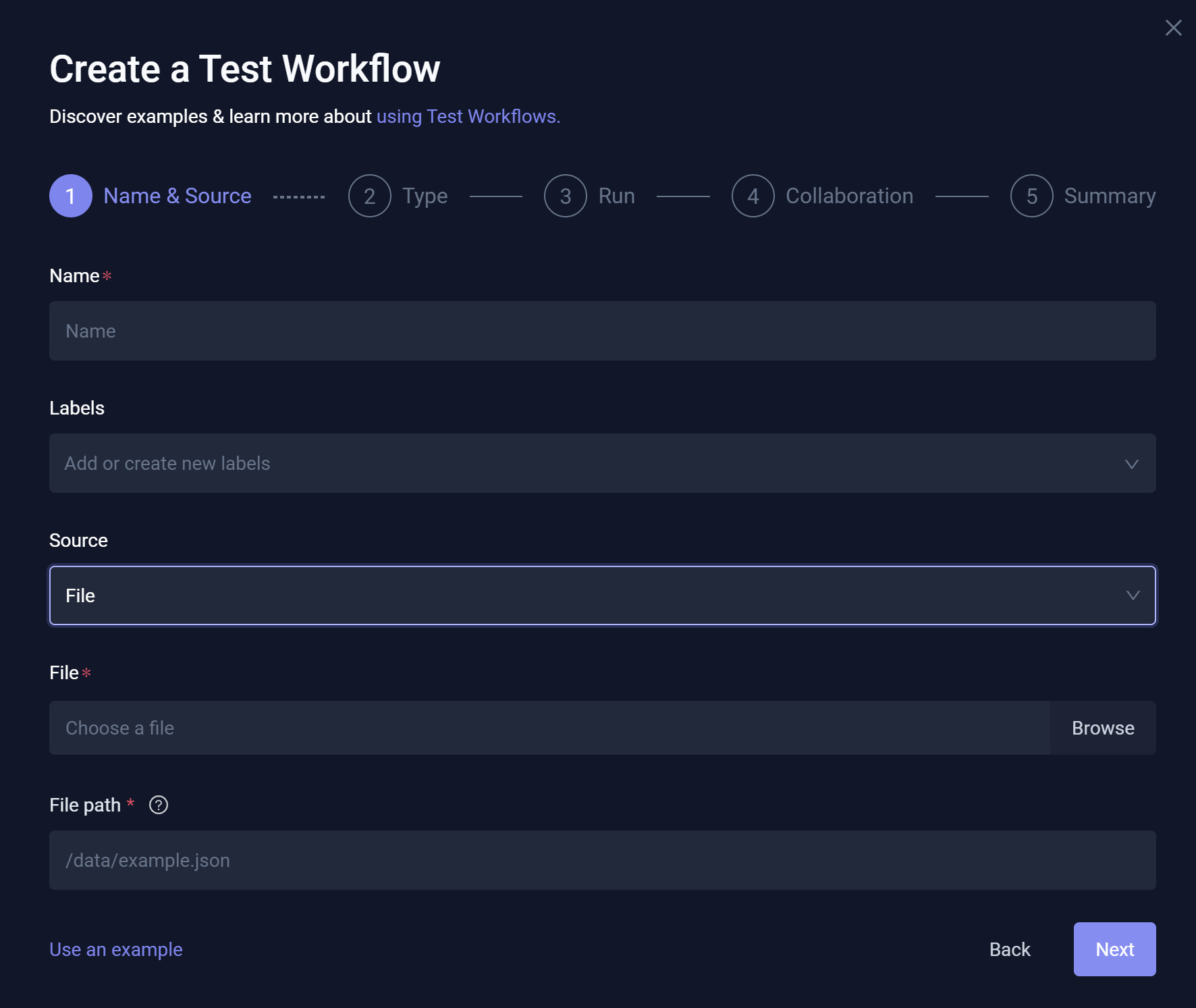
- File – Allows you to choose the file to upload.
- File path – Allows you to denote the path where the file content will be mounted, which is the container that will be used to run your test. You can use relative or absolute paths.
String Source
When you select String as your Source, your test prompts as follows:
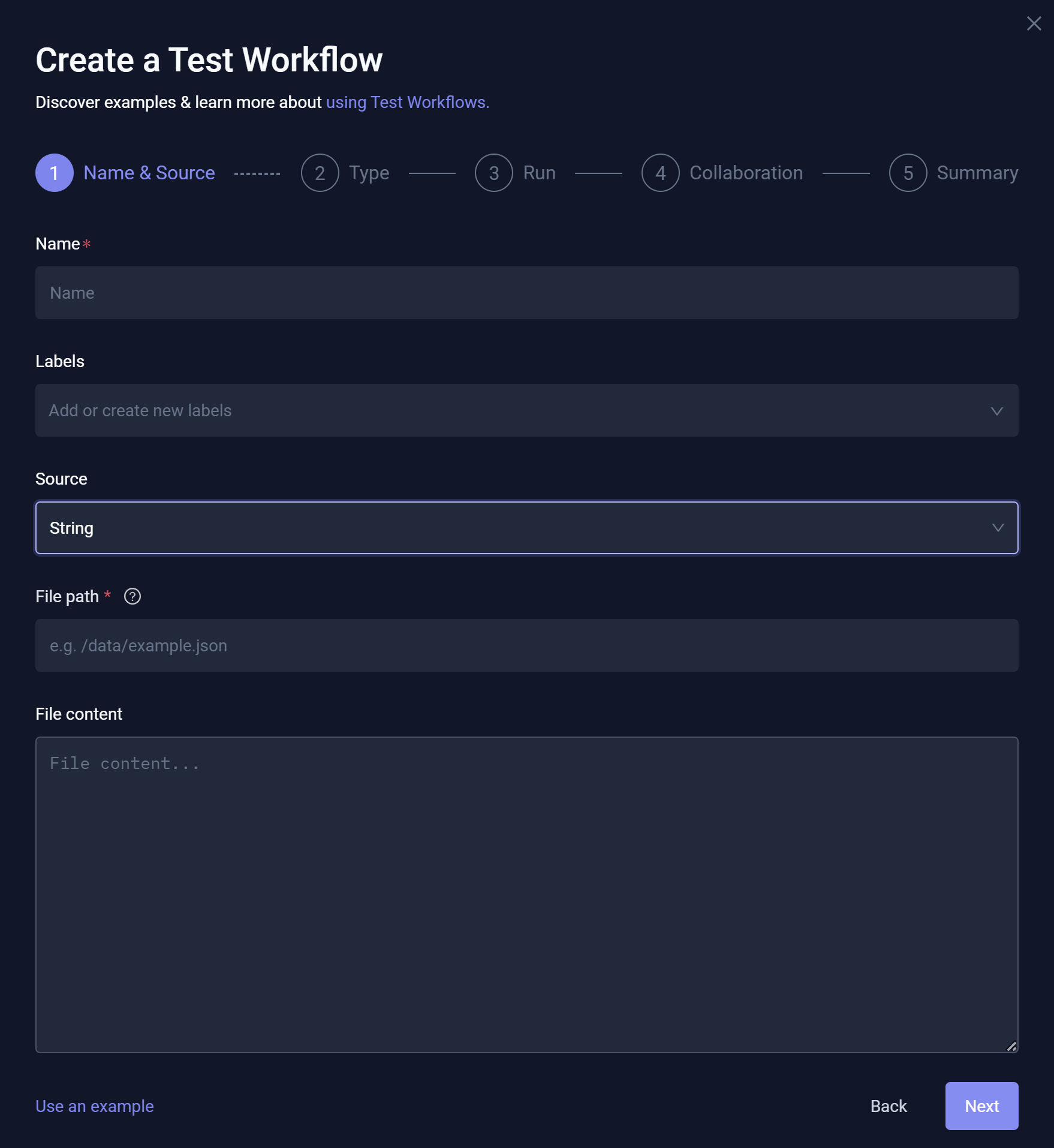
- File Path – The path where the file content will be mounted in the container. You can use relative or absolute paths.
- File Content – The actual test script that will be written to the file.
Step 2 – Type
This step prompts you for the test Type:
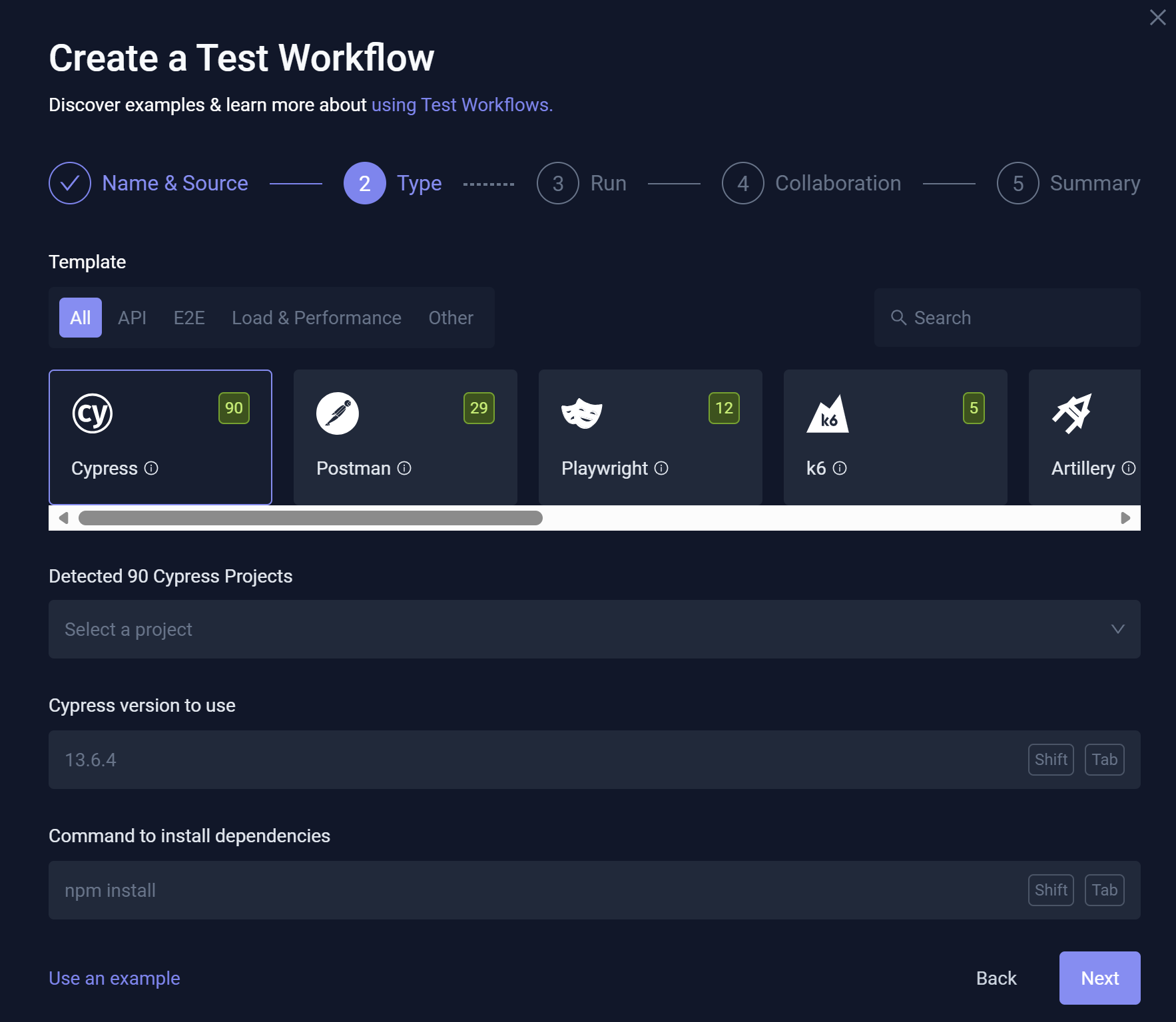
The image above depicts Testkube's detection of a number of tests for each Type in the specified repository via Test Discovery. The green value represents the number for each test using tools such as Cypress: 90, Postman: 29, Playwright: 12, and K6: 5.
Selecting a tool type that has detected tests displays a corresponding Selector that allows you to choose which of the tests you want to run. For example, when selecting the Cypress as depicted above, the following Cypress projects are available:
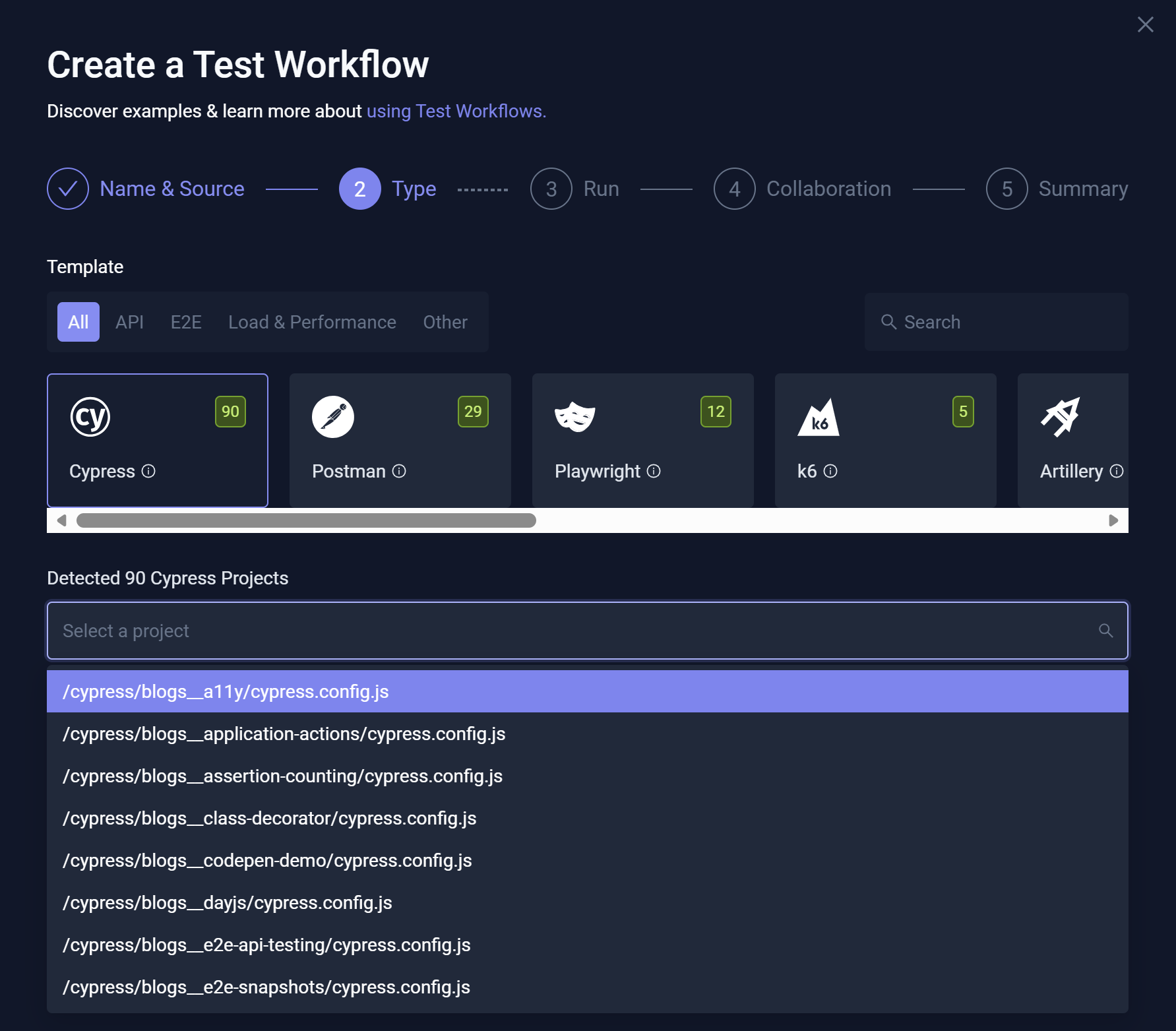
Depending on the testing tool discovered, Testkube attempts to extract the correct version of the tool to use. You can view and modify this tool version in Cypress version to use, which resides below the Selector.
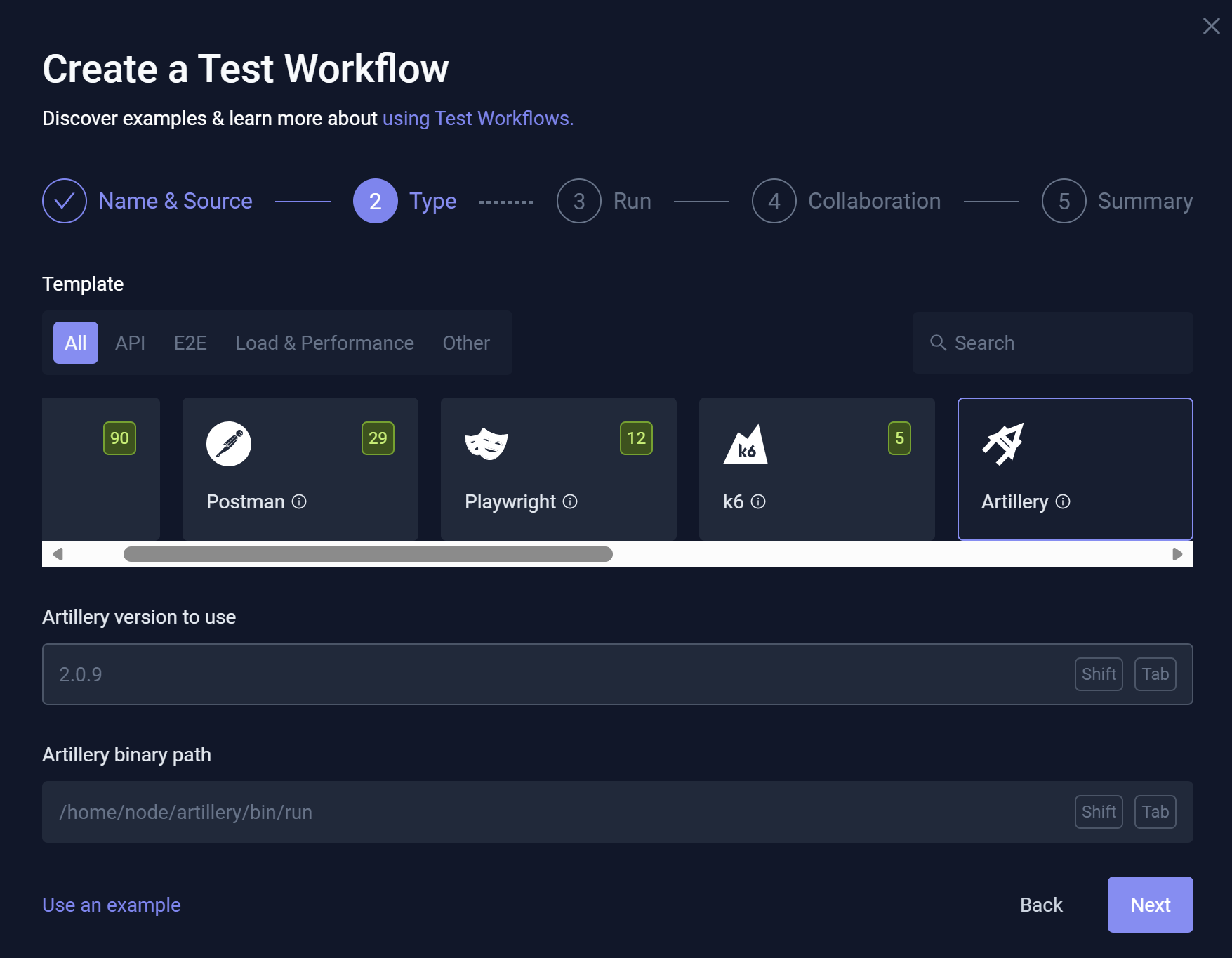
Selecting a tool for which Testkube has not found any tests prompts you for the version and command to use to run the tool:
Step 3 – Run
Run allows you to specify and modify the run command along with the Execution working directory for the selected testing tool. If your test was discovered via Test Discovery, these values will be pre-filled; otherwise, you must manually enter the run command and path to your test script.
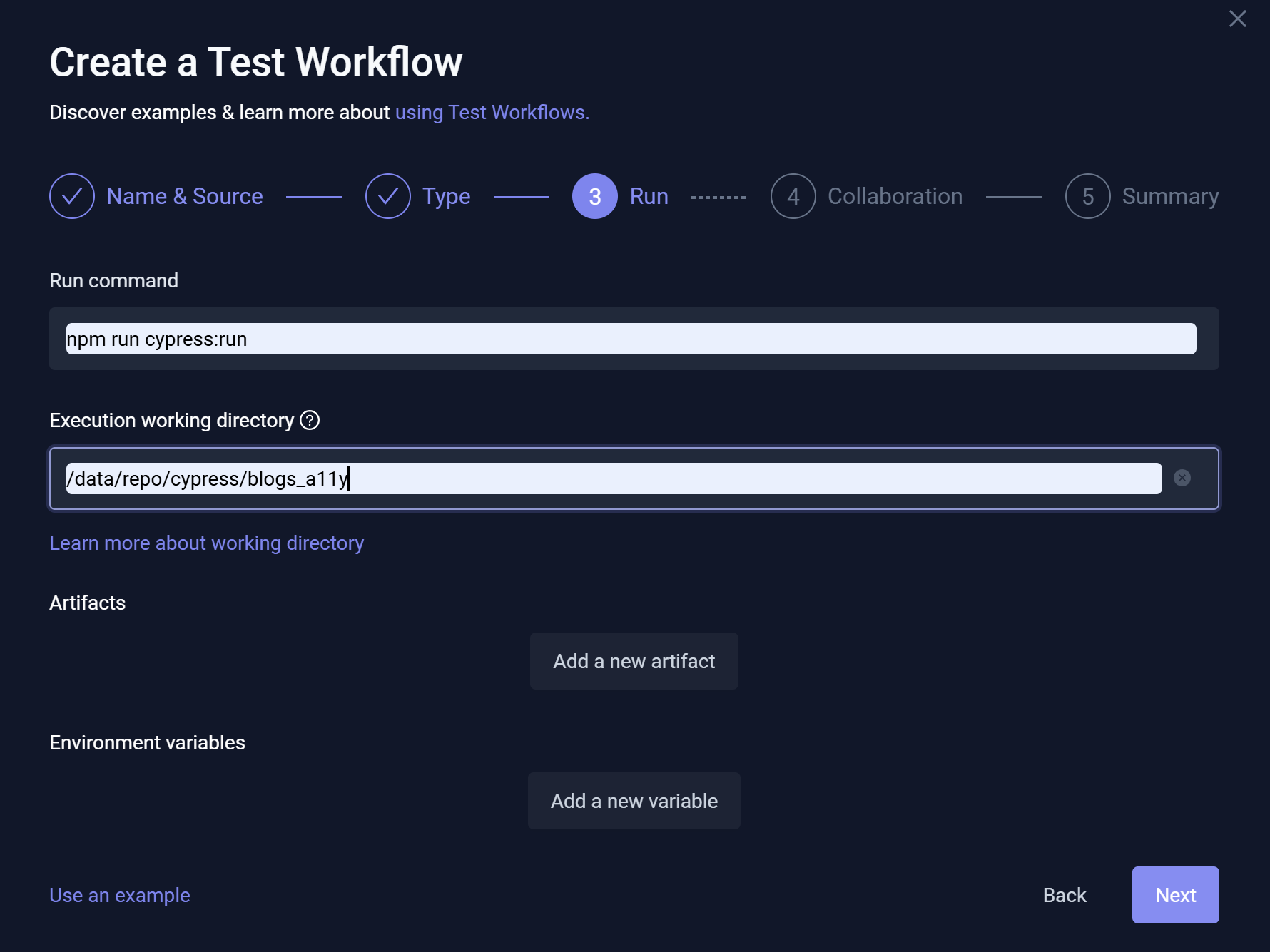
When using a Git Source, the repository is cloned and mounted under the /data/repo folder in your container. The Execution
working directory must be set accordingly. When using a File or String Source, the file is written to the /data folder instead.
Ensure your command and Execution directory are configured appropriately.
You can also specify:
- Artifacts – Location where Testkube can find artifacts created by your testing tool (such as reports and videos). For additional information, read Artifacts.
- Environment Variables – Any environment variables that must be passed to your testing tool for test Execution.
Step 4 – Collaboration
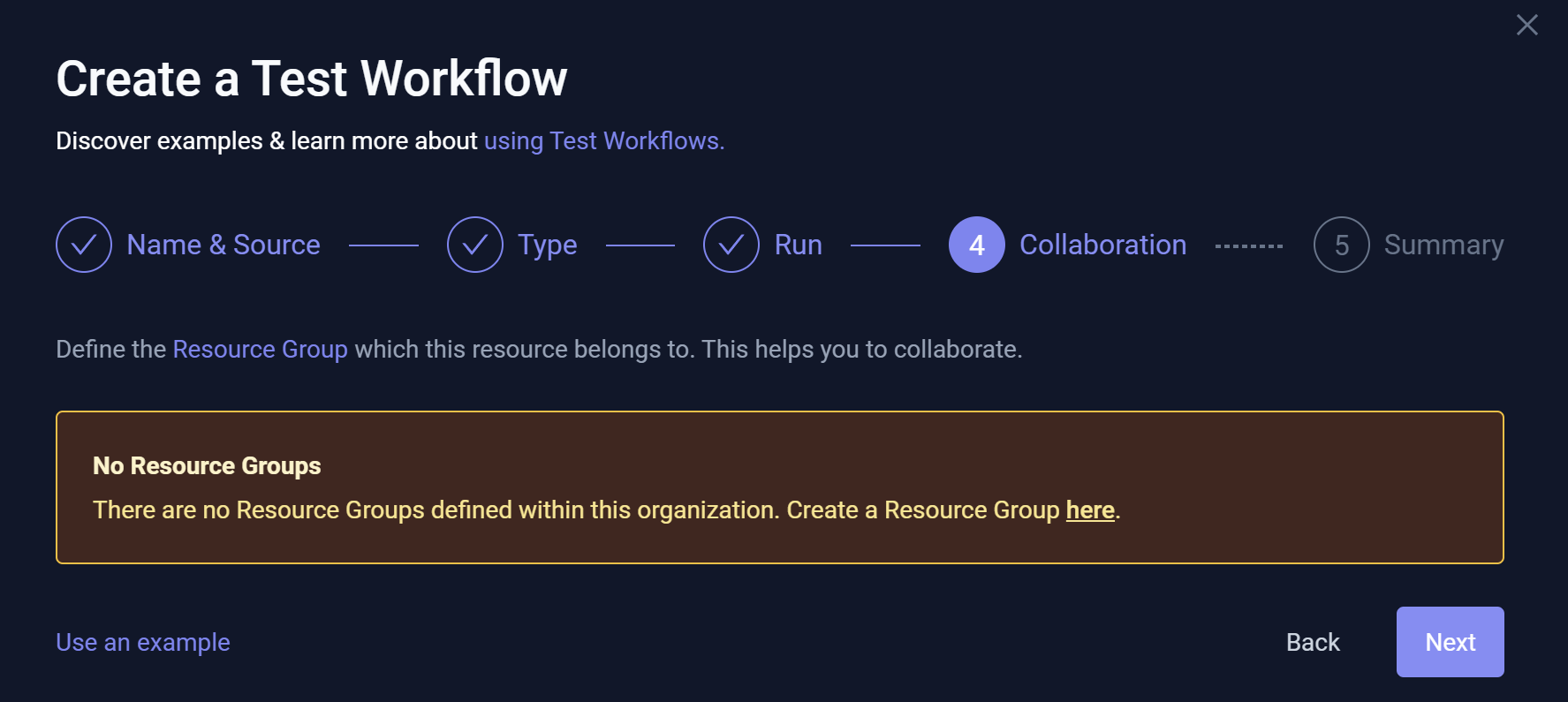
Collaboration allows you to add the Workflow to a Resource Group for further collaboration and access control:
Step 5 – Summary
This step displays the generated Workflow YAML based on the input provided in previous steps. You can modify the YAML (as needed), or you can return to the previous steps for update.
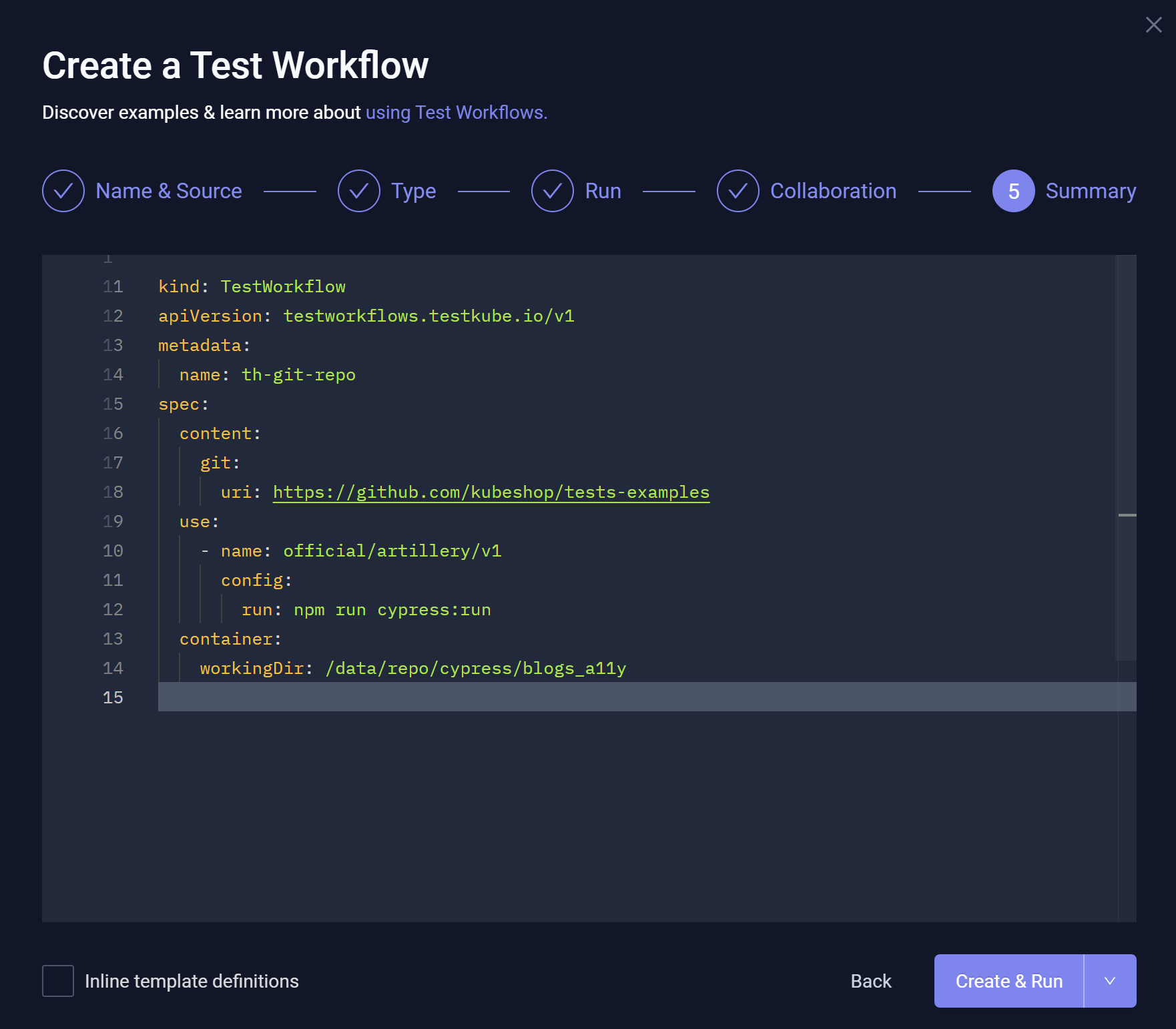
Select the Inline template definitions checkbox to inline any used templates into the generated YAML.
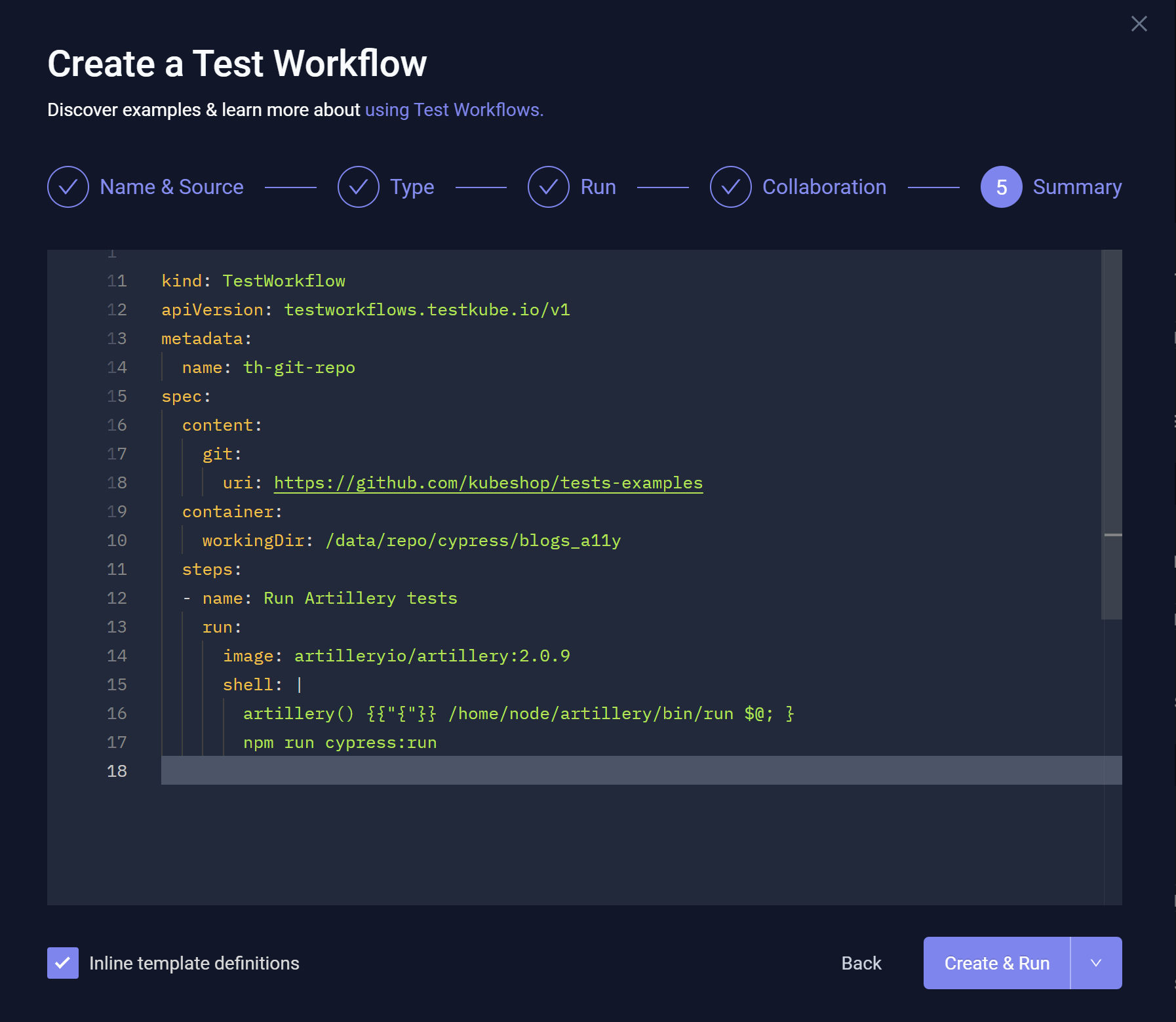
Select this checkbox to make detailed changes to how the underlying testing tool is used; changes will not affect other Workflows using the same template.
When you are satisfied with the created Workflow, select Create & Run or Create.
Start from an Example
Start from an example allows you to launch a test with one of Testkube's example Workflows, which you can modify to align with your requirements.
Selecting Start from an example opens:
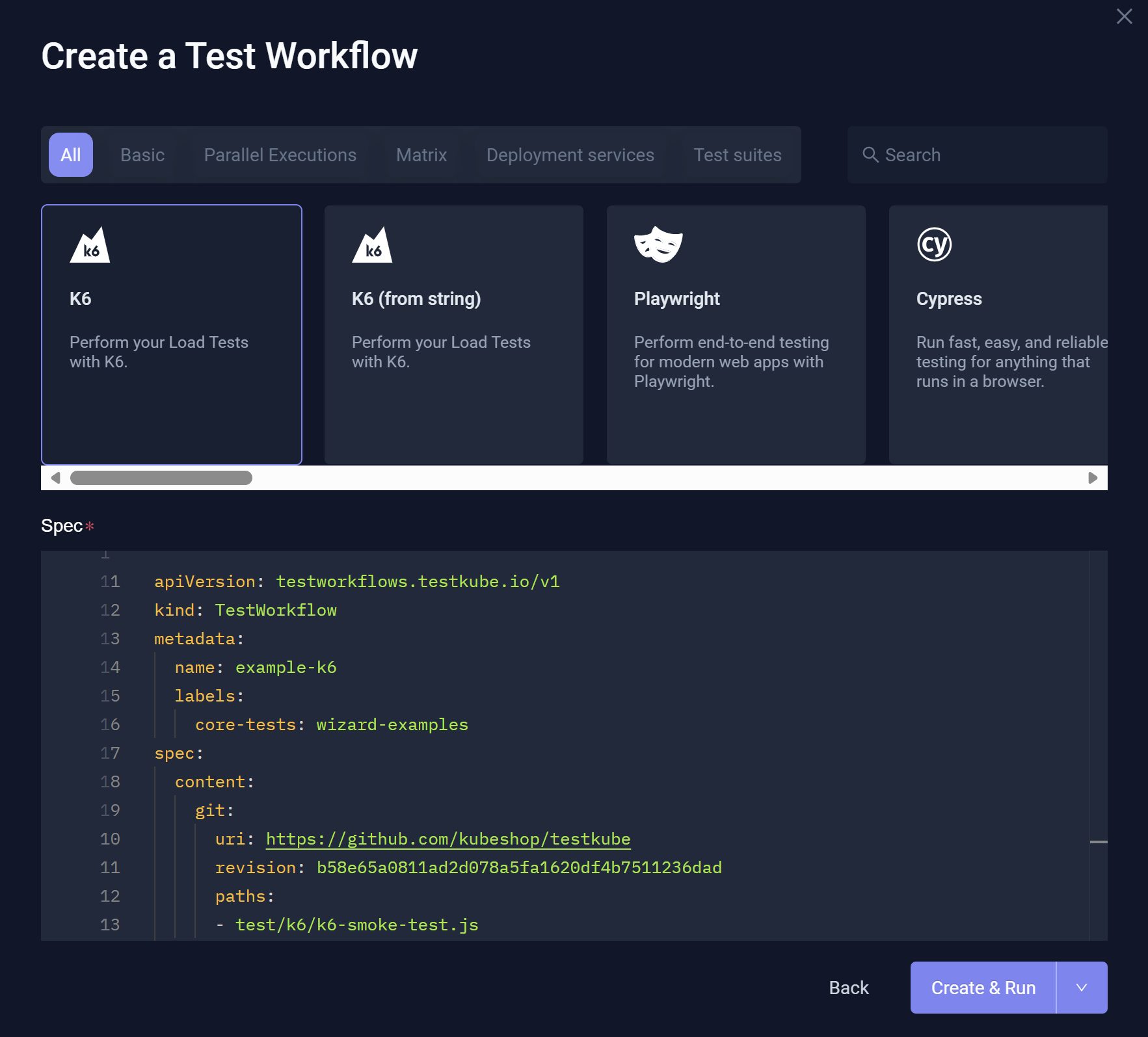
- The Selector (top) allows you to filter the examples that are visible and available for selection.
- The List (middle) displays the available examples.
- The YAML (bottom) displays the example you selected.
You can edit the example before selecting Create & Run or Create.
You can change the Name of the Workflow you created by updating the
metadata.name property in the YAML example before creating the Workflow.
Combine Existing Workflows
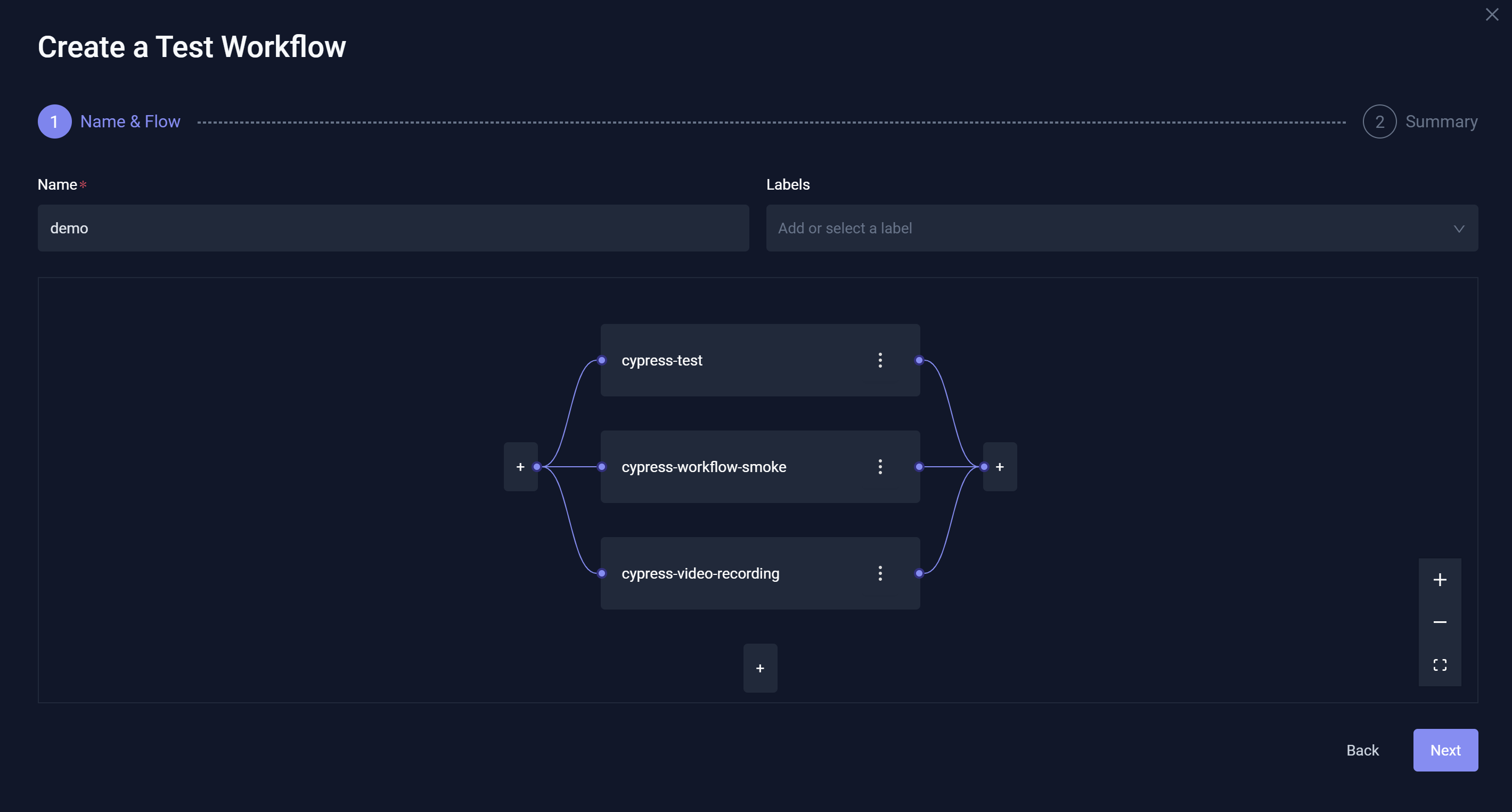
Combine existing Workflows allows you to create a Workflow that orchestrates multiple existing Workflows to run in sequence or in parallel.
Selecting Combine existing Workflows opens:
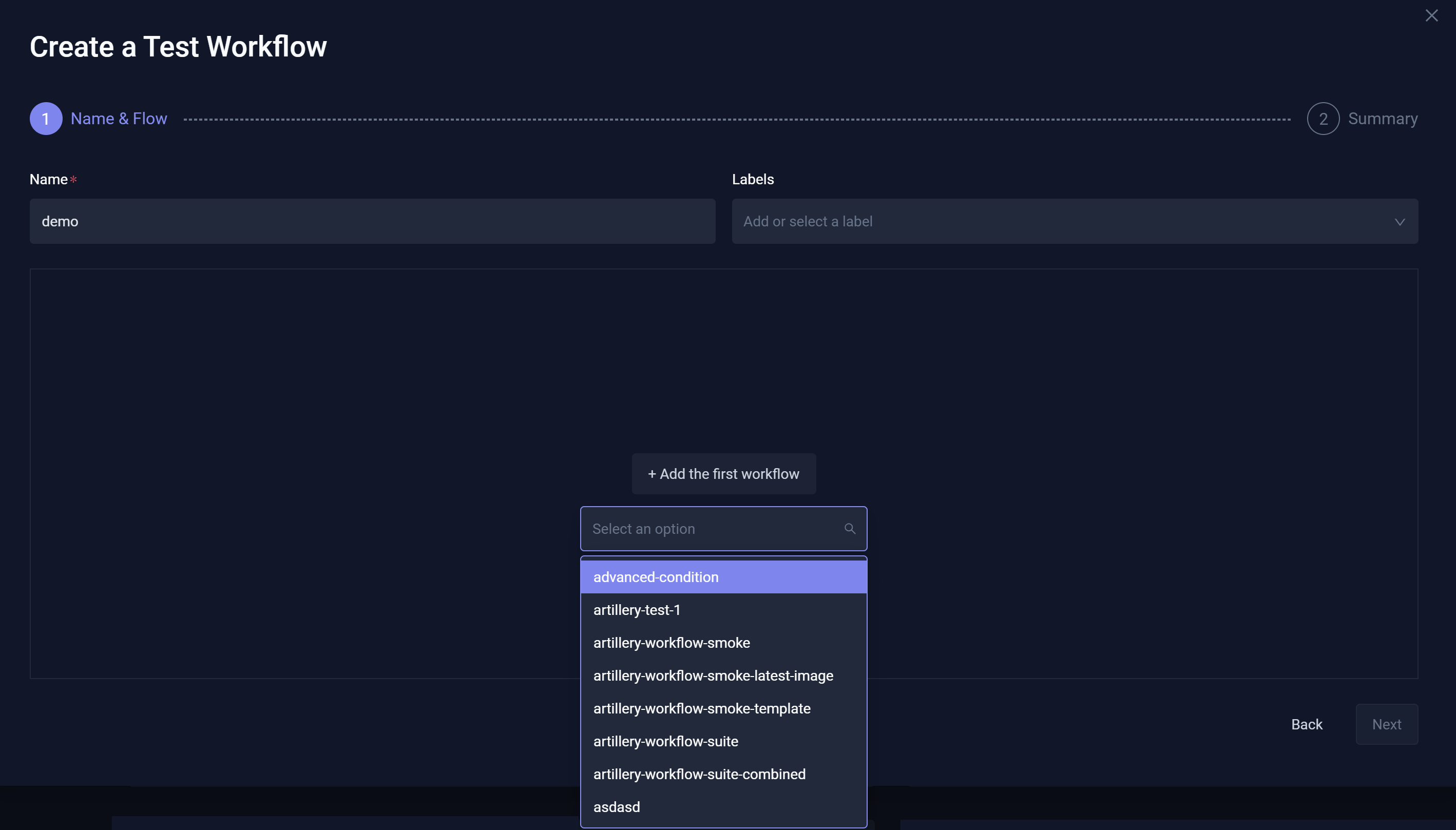
Enter the Name and Labels (optional) that you want to add to this Workflow. Next, select +Add the first workflow to choose an initial Workflow. Once added, you can include more existing Workflows and organize them to execute in any preferred order or combination:
Upon completion, select Next to view the corresponding YAML for your Workflow.
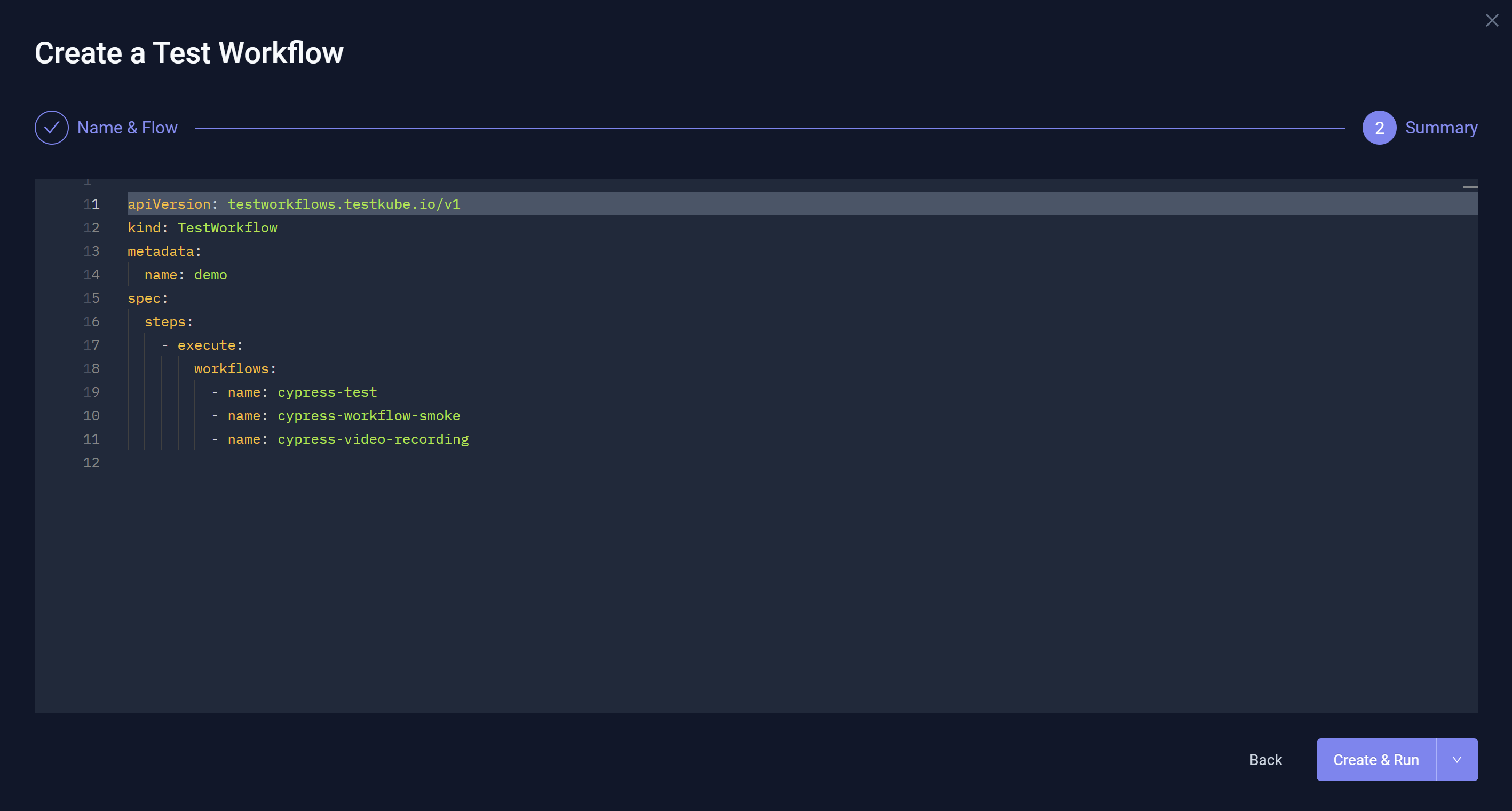
Select Create & Run or Create.
For additional information about Combine existing workflows, read Workflow Orchestration.
Infrastructure Validation
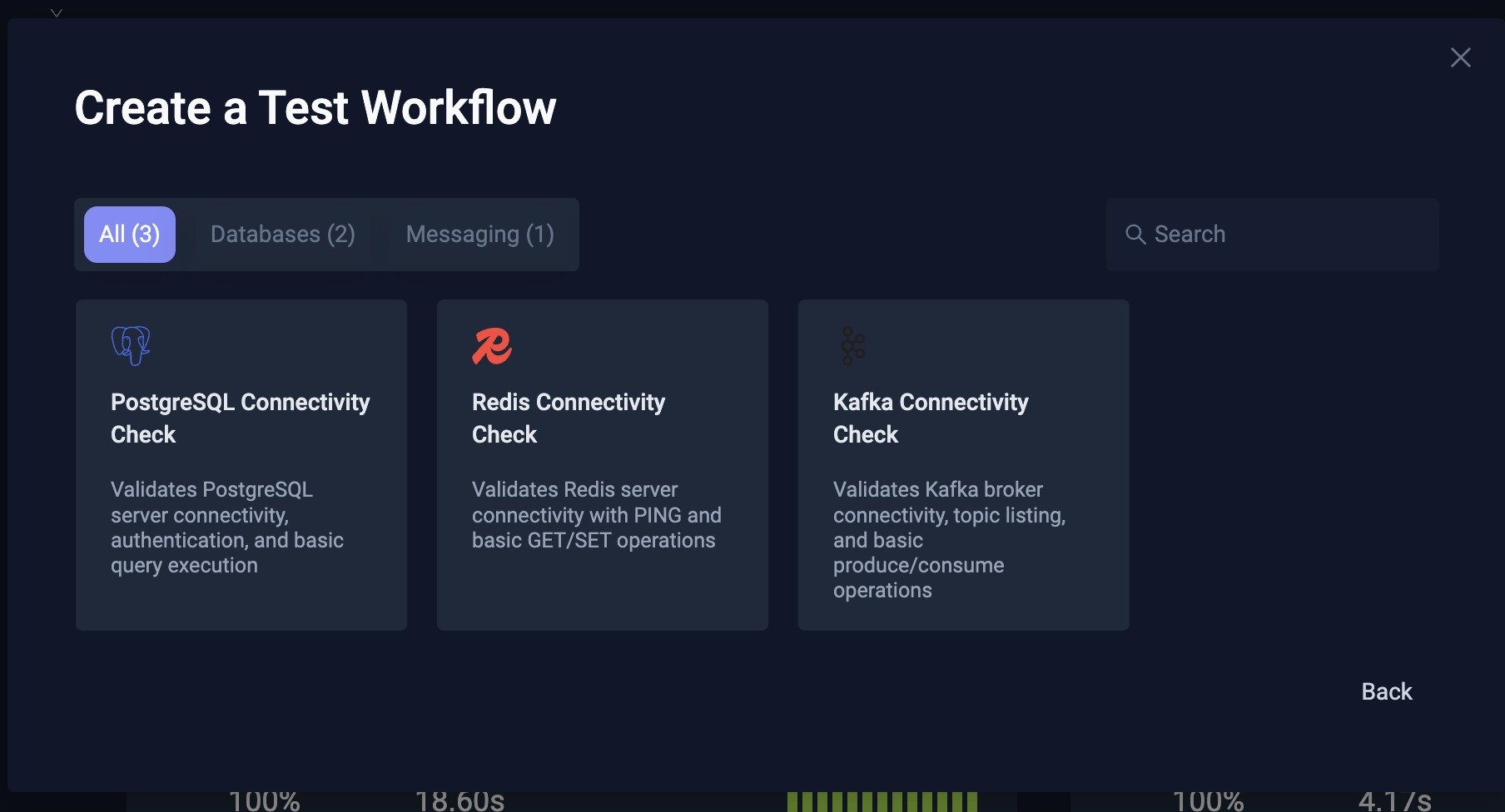
This option allows you to import an existing Workflow for Infrastructure Validation from the Testkube Marketplace.
Selecting a Workflow from the Marketplace
Selecting Infrastructure Validation opens an initial screen that shows all available Workflows on the Marketplace:
Configuring the Workflow
Selecting a Workflow takes you to its configuration page where you can specify configuration parameters (if applicable):
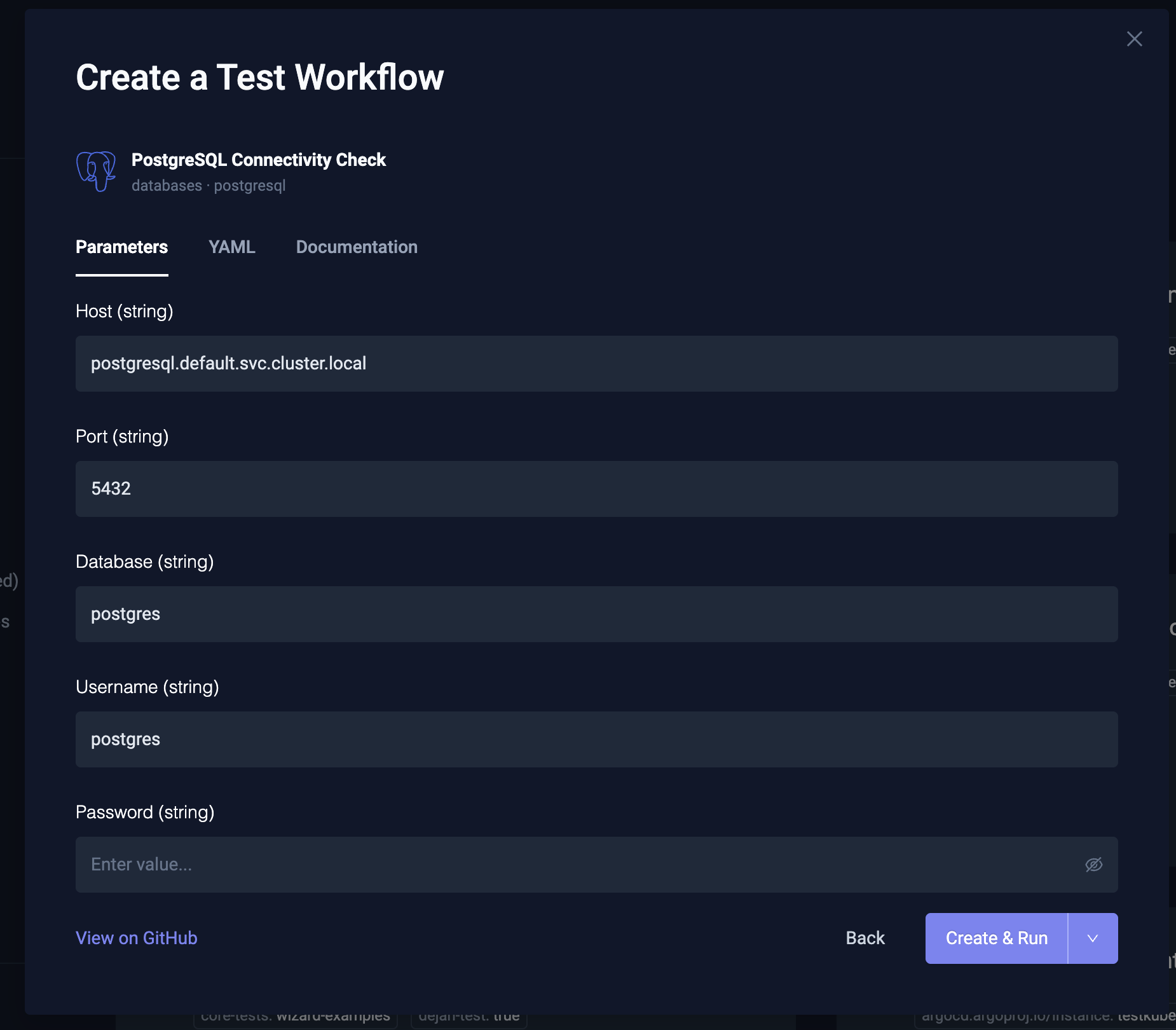
Workflow YAML
The YAML tab shows the actual TestWorkflow YAML of the Workflow:
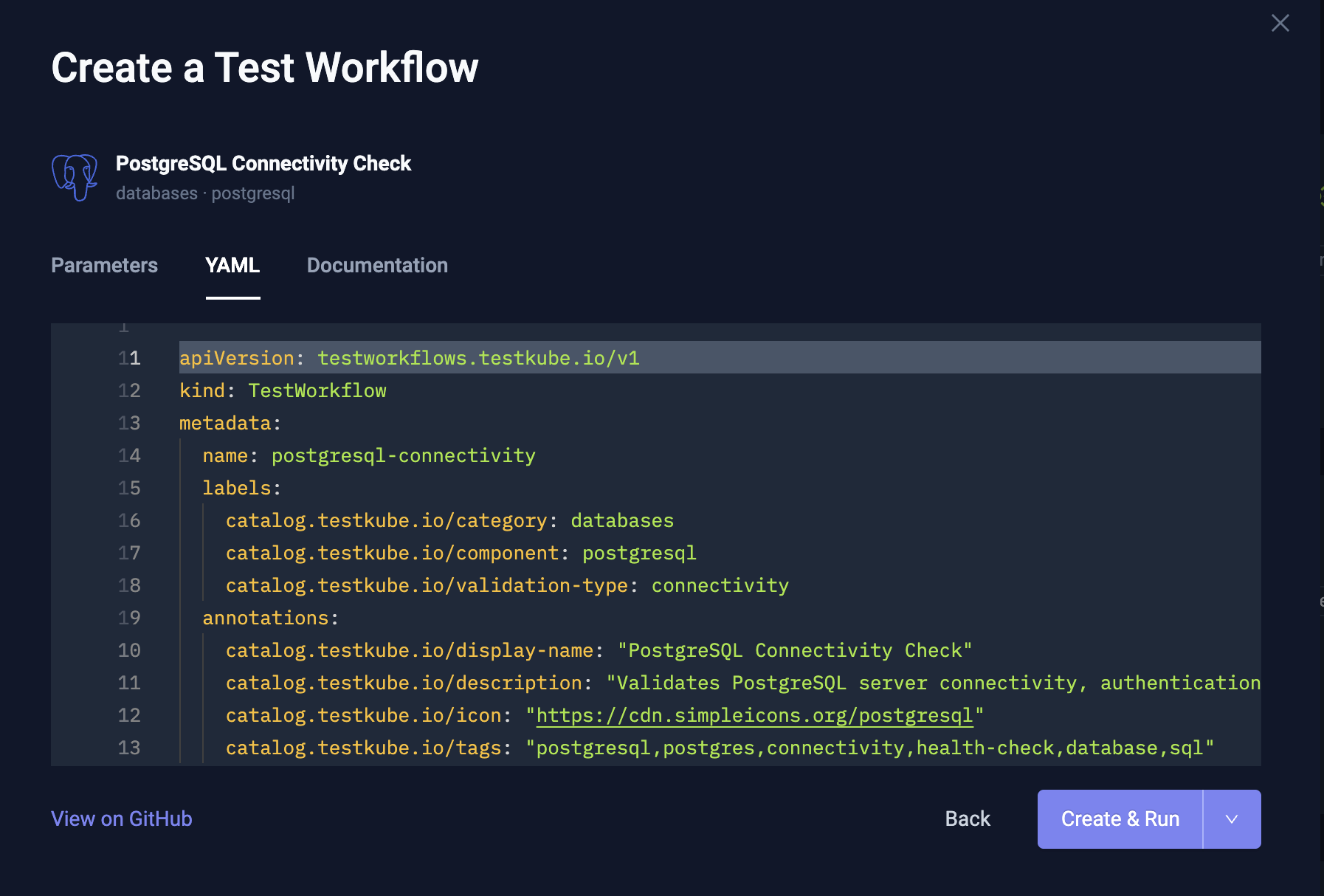
The [View on Github] link opens the corresponding Workflow in the Marketplace on GitHub
Workflow Documentation
The Documentation tab shows the content of a corresponding README file in the repository if available.
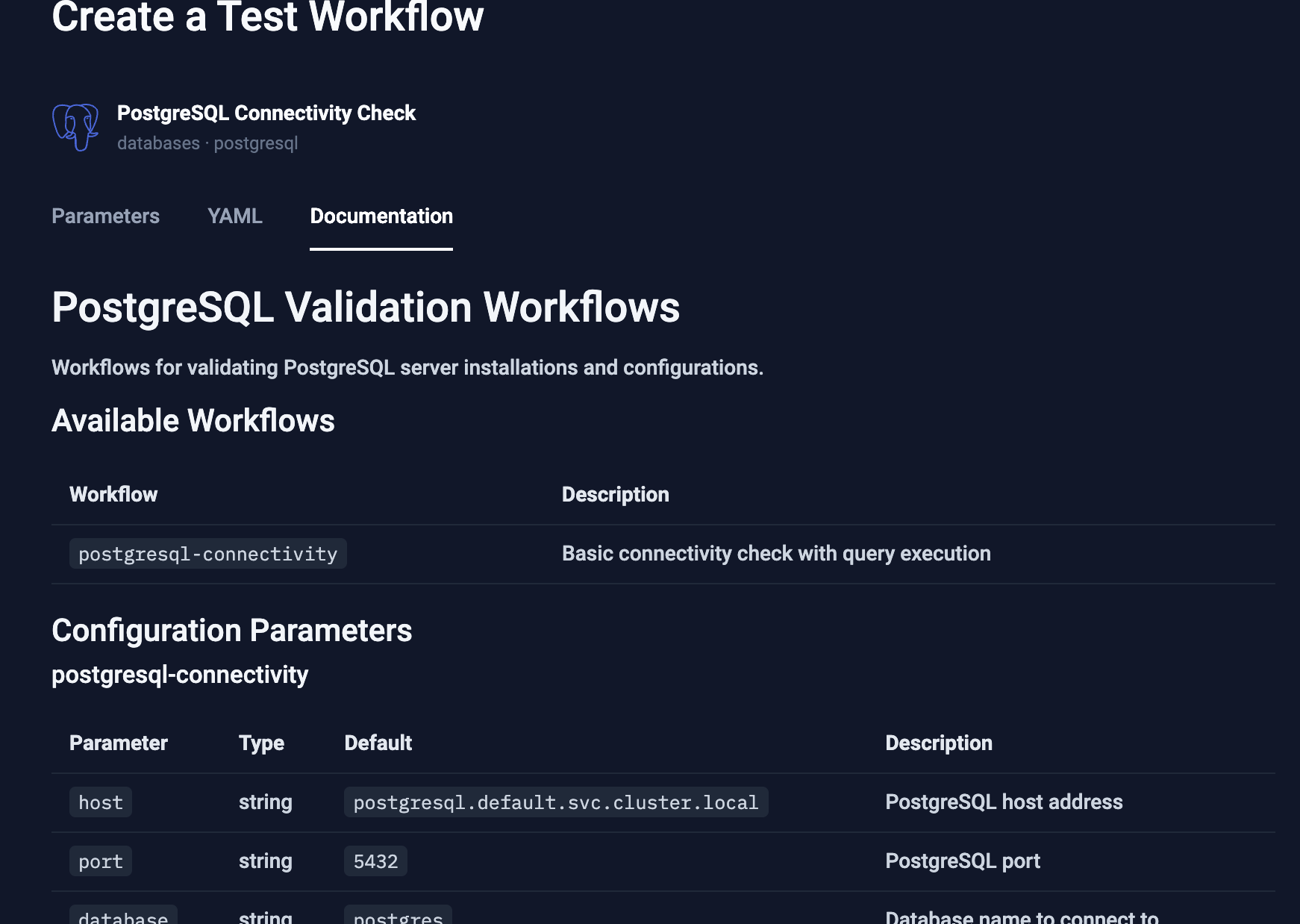
Adding the Workflow to your Environment
Select Create & Run or Create at the bottom of any of these tabs to import the Workflow into your Environment with the specified configuration parameters.
Import from YAML
Import from YAML allows you to paste and edit your YAML Workflow definition.
Selecting Import from YAML opens:
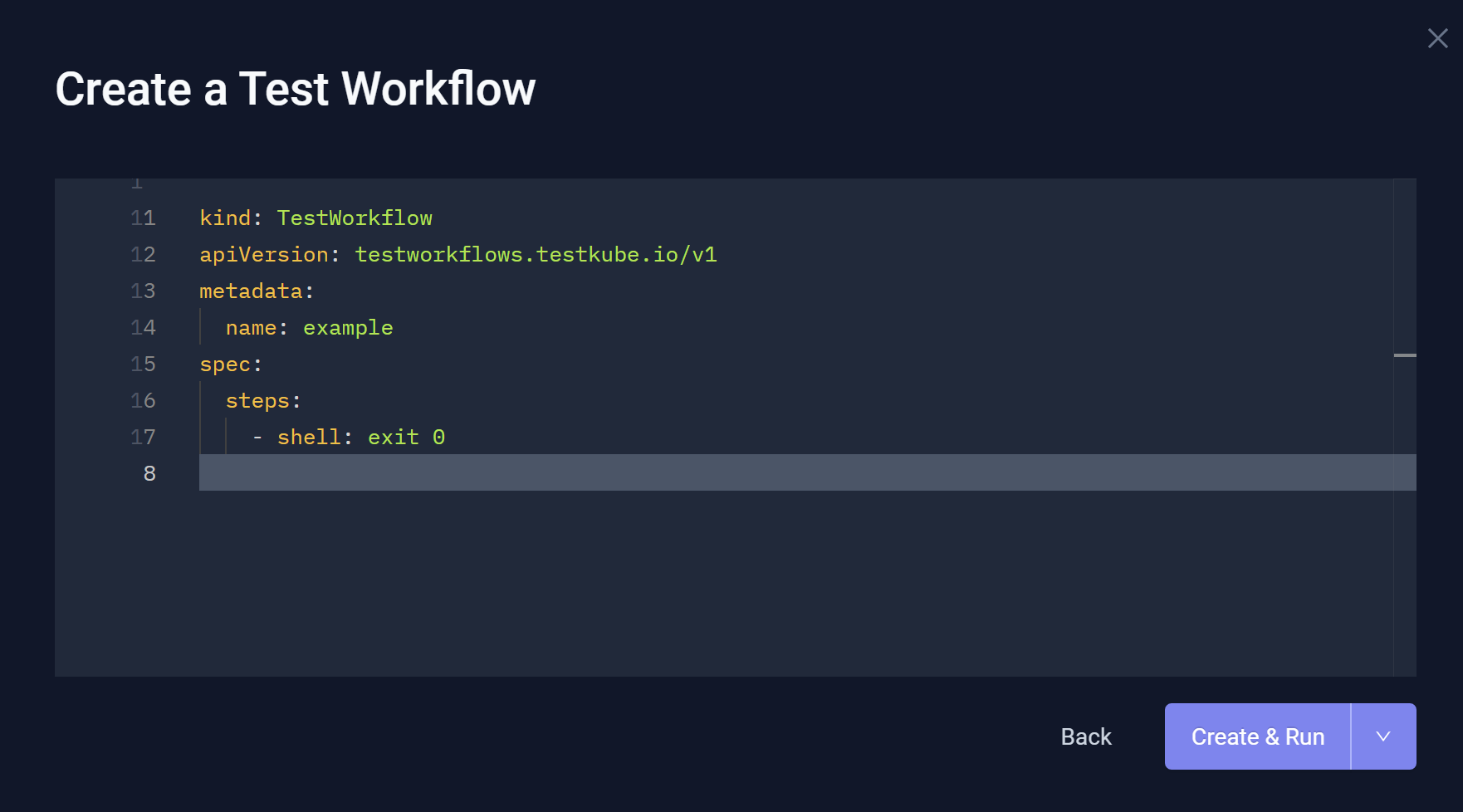
Upon completion, select Create & Run or Create.
Examples and Guides contains Workflow examples that you can paste here, try, and refine.